[IBS Home] [Up] [2677M Diagrams] [2677M Setup]
|
|
|
I-O 2677M SetupEntering Setup | Most Common Settings | Setup Screen 1 | Printer Disabled | Printer Setup Screen 2 | Keyboard Functions | Change between underline and block cursor Entering Setup
Most Common Settings
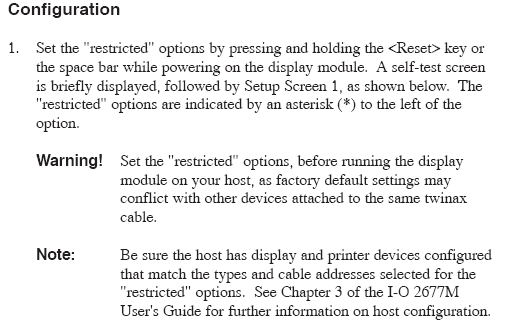
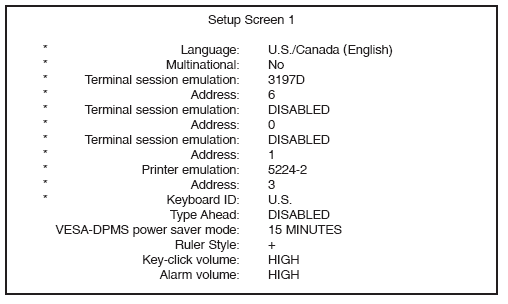
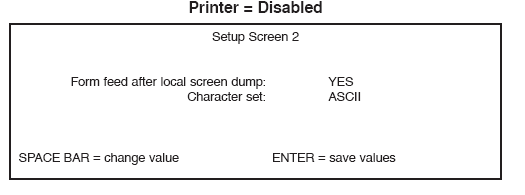
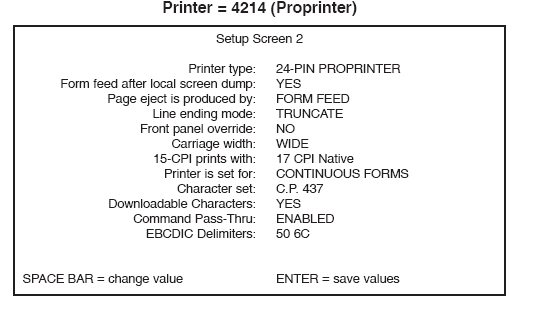
Setup Screen 1Printer DisabledPrinter Setup Screen 2
Keyboard FunctionsHelp Screens: <Alt><Alt><Help> The help screens contain messages that explain some of the display station features, such as the local <Alt><Alt> key sequences and status line information. The Help screens can be viewed at any time. Cursor Position Identifier: <Alt><Alt><K> The cursor position identifier displays the current cursor location by line and column number in the bottom left corner of the screen. This key sequence toggles the identifier on and off. Cursor Blink: <Alt><Alt><X> This key sequence toggles the local blinking specification between a blinking or non-blinking cursor. This sequence combines with the host blinking specification to control cursor blinking. Note: This option may have no immediate visual effect depending on thehost specifications. Refer to host documentation for more information. Cursor Type: <Alt><Alt><Reset> This key sequence toggles between an underscore or block type cursor. Extended Display Mode: <Alt><Alt><T> Press this key sequence to display the field attributes on the current screen. Manual Screen Dimming: <Alt><Alt><D> Press this key sequence to immediately dim the screen. The screen will go blank (except the status line on the bottom of the screen). A " ¤ " symbol appears on the bottom of the screen. Note: I-O recommends the use of this feature to help prolong the life ofthe display. OPERATION I-O 2677M User’s Guide 4-5 Keyboard Click: <Alt><Alt><A> This choice sets the volume of the key click (the sound made when the keyboard keys are pressed.) This option allows you to select the volume of the key click or disables the key click. Select a comfortable volume. Parity Error Indicator: <Alt><Alt><E> The parity error indicator displays the number of parity errors detected since the display module was powered on (the count rolls over after 99 to 0). These are displayed in the bottom left corner of the screen in place of the row-column indicator. Parity errors usually indicate cabling problems. This key sequence toggles the indicator on and off. Ruler: <Alt><Alt><R> or <Rule> or <Alt><PgDn> The ruler feature provides a cursor reference for ease of reading and aligning text on the screen. Choose the ruler type in the Setup Screen, then press this key sequence to toggle the ruler on and off. 4/8 Color: <Alt><Alt><V> Press this key sequence to toggle the display between a full 8-color (red, blue, black, green, white, yellow, turquoise, and pink) and 4-color mode. In 4-color mode, the limited color displays green and/or white with blue. This option is available on the I-O 2677M with a color monitor. White Cursor: <Alt><Alt><Y> Press this key sequence to toggle between a white cursor and one that assumes the color of the field it is in. This option is available on the I-O 2677M with a color monitor. Reverse Video/Overscan: <Alt><Alt><V> When this feature is activated, the background and the text of the screen intensities are reversed. This feature is available on the 2677M with a monochrome monitor. OPERATION 4-6 I-O 2677M User’s Guide Reverse Intensities: <Alt><Alt><V> When this feature is enables, it changes the highlighted intensity fields to normal intensity fields to highlight intensity. This feature is available on the 2677M with a monochrome monitor. Software Keylock: <Alt><Alt<I> This feature either locks the screen to inhibit unauthorized use of the keyboard or to assign the software keylock password. Record/Playback Security: <Alt><Alt><Attn> This feature was designed to prevent unauthorized personnel from obtaining confidential recorded keystrokes. This feature allows the user to select the level of security of the record/playback feature. Text Assist Characters: <Alt><Jump> or <Alt><Home> When in DisplayWrite/36, TextManagement/38, or OfficeVision/400, pressing this key sequence sends a request to the host to display the text assist characters (line wrap, return, etc.) in the document. Using the Keyboard The 102/103-key enhanced keyboard functions the same as IBM's 102-key enhanced keyboard. It only works with 3487C NonInfoW, 3197C, 3197D, and 3196 display emulations (which are the only emulations that will be displayed on the Setup Screens). Only use the enhanced keyboard at addresses that are configured at the host for an enhanced keyboard. The 122-key keyboard works with all display emulations on the I-O Display Module. Note: Since the System/34 does not support 3197 and 3196 emulations,the 102/103-key keyboard cannot be used with the System/34. The 5251 model 11 and 5291 emulations will only support the 122-key keyboard. OPERATION I-O 2677M User’s Guide 4-7 Shift and Alt Keys The shift key is used to type upper case letters. On 102/103-key keyboards, Shift key also selects the function shown on the very top of the key. For example, to enter the Setup Screen from the 102/103-key keyboard, you must press and hold the <Shift> key, then press the <Setup> key, since the "Setup" legend is printed on the top of the key. There are two ways to use the Alt key: • Press and hold the <Alt> key, then press a key to perform the function shown on the front or "face" of the key. • The Alt key is also used for local commands. Press the <Alt> key twice, then press the specified key. For example, to toggle between a block and an underline cursor type, press and release the <Alt> key, then press and release the <Alt> key again, and then press and release the <Reset> key.
|
|