|

 
| |
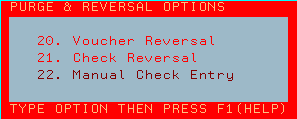
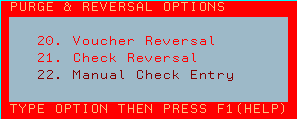
AU 21, 22 (Manual Check Entry)
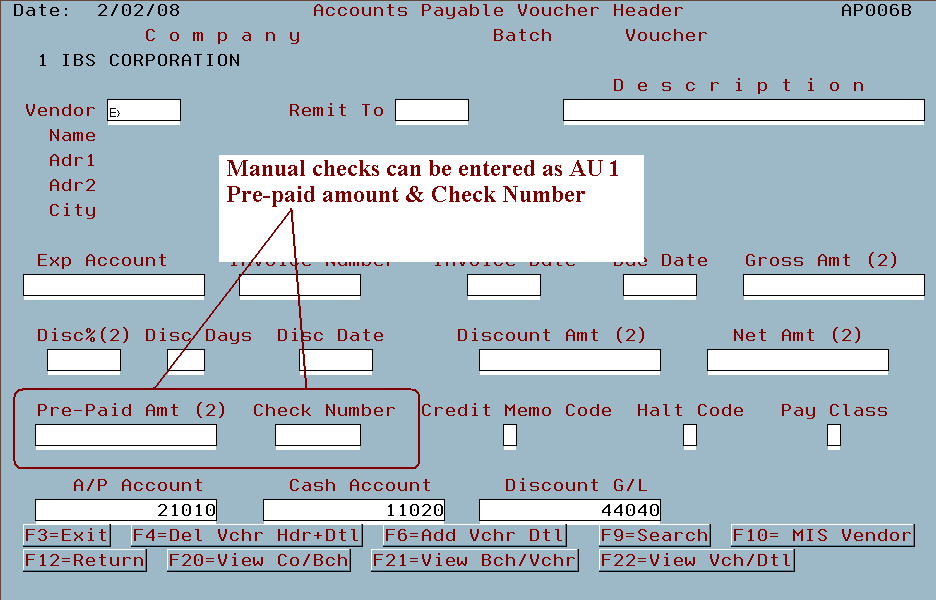
Method A - AU 1 (Enter as a pre-pay)
You may also enter a manual check by entering the information as a pre-pay
with the check # during initial Voucher data entry (AU 1).
- If you elect to do a method 'A' pre-pay you don't have to do method 'B'.
AU 1

Method B - AU 21, 22 (Enter as a manual check)
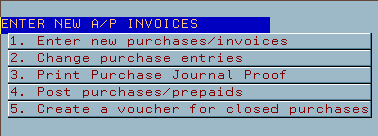
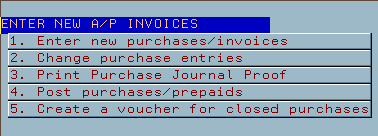
- Enter your voucher AU 1
- Print your cash requirements AU 3
-
Please note that out of balance
vouchers will not post.
You must check this report to verify that your voucher(s) posted!
- Post your voucher(s) AU 4
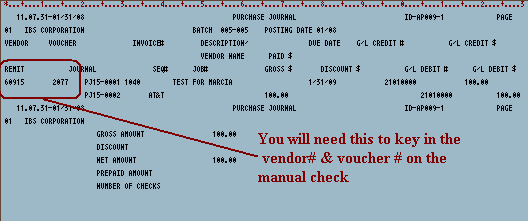
- Pull the purchase journal from the
printer. You will need this information to process the check

- Go to manual check entry AU 21, 22

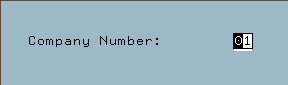
- Enter your company number (most often '01') then press ENTER

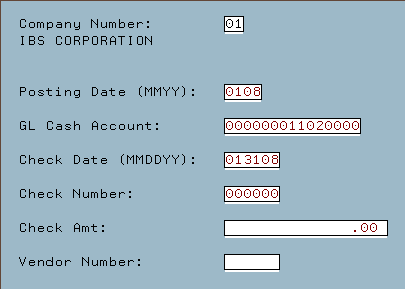
- Enter in the required fields

- Posting period (MMYY)
- enter in the period that you are posting this check to
- GL Cash Account
- type in the account that you will pull this from
- Check date
- enter in the date of the check
- Check number
- enter in the assigned number for the check
- Check Amt
- enter in the total amount of the check
- Vendor number
- enter in the vendor number (your printed posting reports will contain
this information)
- Enter in the voucher and payment field information on the next screen
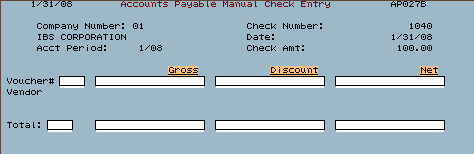
- Voucher
- Check your printed posting reports for the voucher number
- Gross
- the gross will automatically appear after the voucher number is
entered
- Once entry is complete press F10 to process the check will be created
and the message 'transaction processed' will appear at the bottom of
the screen.
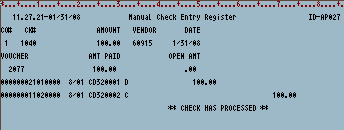
- When you exit manual check entry the 'Manual Check Entry Register'
will print
[back to top]
- Enter your voucher AU 3, 1, 1
- Print your cash requirements AU 3, 1, 2
- Post your voucher(s) AU 3, 1, 4
- Go to manual check entry AU 21, 22

- Click here for remaining steps
Do one of the following
- clear the AP Manual Check user (AU 21, 6) or
- use the workstation that is already in Manual check entry

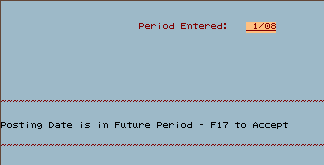
- Check the date entered
- To continue with selected date press F17 (Shift-F5) on PC keyboards
[back to top]
|

.htm_cmp_ibs-support-theme010_bnr.gif)