|
|
|
|
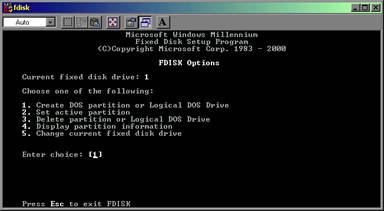
FDISK1. To start FDISK, type FDISK at the command prompt, and then press ENTER. 2. If you asked if you want to enable Large Disk Support, press Y 3. Press “5” to change the Fixed disk drive and select the drive that has a nearest size of your new drive (For example, 30 gig drive may show 29306mb[10gig=10000mb estimated])
The portion “Current fixed disk drive:” must not be“1”, it must be the drive number of the drive kit. 4. To create a new primary partition, at the FDISK Options screen, press 1 on your keyboard, press ENTER, press 1, and then press ENTER. When asked if you want to use the maximum space (the entire drive), choose one of the two following options, and then press ENTER: a. Y for Yes. Choose this if you don't want to set up other drives on the hard disk. This uses the entire drive for partition. After you choose this option and press ENTER, FDISK creates the partition, and instructs you to restart and to press ESC to exit FDISK. You refinished partitioning and can go on to the next step. NEXT STEP: After boot up you will notice the new drive letter. Double click on the drive letter and Windowsill ask you to format the drive. Click yes to format the drive so it can be useable. b. N for No. Choose this if you do want tossed up other drives on the hard disk. You can specify how large you want the partition to be: either as a percentage of the hard disk's total capacity, Orin megabytes. After typing a value, press ENTER. FDISK displays information about the new primary partition. To return to the FDISK Options screen, presses. c. 5. To create an extended partition, at the FDISK Options screen, press 1 on your keyboard, press ENTER, press 2, and then pres enter. FDISK displays the maximum size that the extended partition can be. We recommend that you use this maximum value, because you can only create one extended partition. Any hard disk space you do not assign to the extended partition cannot be accessed by a hard disk and, consequently, by Windows ME. 6. After you designate the size of the extended partition and press ENTER, FDISK immediately takes you either to the screen where you create logical drives in the extended partition, or it displays information about the extended and primary partitions. If it displays the partition information, press ESC to get to the screen where you create logical drives. The maximum available space in the extended partition is displayed both as a percentage (100%) and megabytes. Follow the instructions on the screen to divide up the space into one or more logical drives, pressing ENTER after typing a percentage or megabyte quantity. Continue creating logical drives until you have used up all the space in the extended partition. To return tithe FDISK Options screen, press ESC.
7. After you have created the partitions analogical drives, at the FDISK Options screen, press ESC. To exit FDISK and return to the command prompt, press ESC again. When you're at the command prompt, you must turn off your computer for your partition changes to take effect. 8. You are now ready to format the drives you created.
To FORMAT drives:After boot up you will notice the new drive letter. Double click on the drive letter and Windowsill ask you to format the drive. Click yes to format the drive so it can be useable. |
|