|

  
| |
Installing Licensed Programs
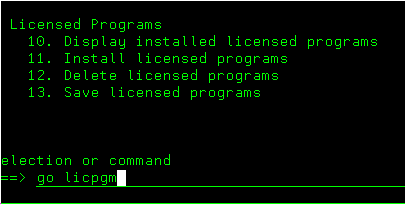
- go to a command line
- type 'go licpgm'
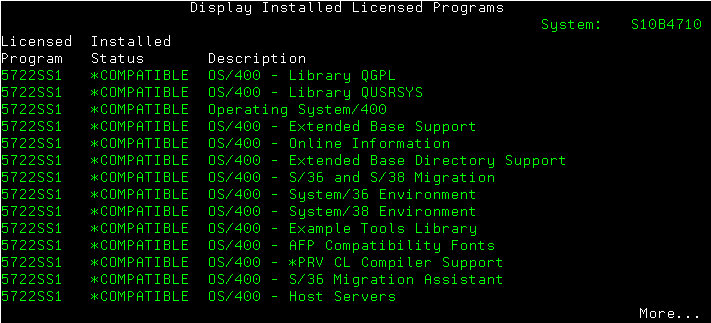
- take option 10
- when the screen displays press F11 (Display Release)
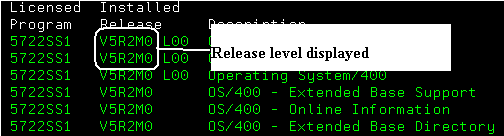
- look at the release level
Standard Installation Procedure
- Insert your installation media into your system.
- If your installation media is a CD-ROM, insert it into your optical
device.
- If your installation media is a tape, insert it into your tape
drive.
- At the command line, type GO LICPGM and press Enter to access the Work
with Licensed Programs display.
- Select Option 11 (Install licensed programs) on the Work with Licensed
Programs display to see a list of licensed programs and optional parts of
licensed programs.
- Type 1 (Install) in the Option column next to 57xxTC1 (IBM TCP/IP
Connectivity Utilities for i5/OS). Press Enter. The Confirm Licensed
Programs to Install display shows the licensed program you selected to
install. Press Enter to confirm.
- Fill in the following choices on the Install Options display:
- Installation device
Type QOPT if installing from a CD-ROM device.
Type TC or (TAP01) if installing from a tape drive.
- Objects to install
This option allows you to install both programs and language
objects, only programs, or only language objects.
- Automatic restart
This option determines whether the system automatically starts when
the installation process has completed successfully.
- When TCP/IP Connectivity Utilities successfully installs, either the
Work with Licensed Programs menu or the Sign On display appears.
- Select Option 50 (Display log for messages) to verify that you have
installed the licensed program successfully.
If an error occurs, you will see the message Work with licensed program
function not complete on the bottom of the Work with Licensed Programs
display. Should a problem occur, try to reinstall the program.
|