IBM Server Site

IBS Home Up

PPTP VPN

VPN Solution
LAN-to-LAN VPN Connection by PPTP
Plan
Head Office got a Router_1 with a fixed IP :203.69.175.55 and a LAN 192.168.7.0 by NAT
Branch Office got a Router_2 with a fixed IP:203.204.94.172 and a LAN 192.168.9.0 by NAT
Router 1 Settings (Head Office)


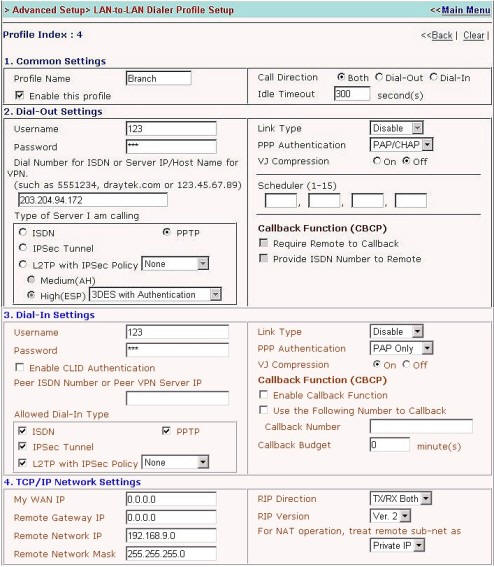
1.Create a LAN-to-LAN Dialer Profile in Advanced Setup
- Fill a new Profile Name " Branch" and enable this profile
- Set Call Direction to "Both" (Suggestion!)
- Fill Username and Password for user and fill the server IP you want dial-out Sever IP for VNP field in Dial-out Setting;
and then select "PPTP" for the dail-out type.
- Fill Username and Password for dial-in user and select dial-int type in Dial-in
Setting.

- Configure TCP/IP Network Setting as followings:
My WAN IP 0.0.0.0 (Don't care at this point)
Remote Gateway IP 0.0.0.0 (Don't care at this point)
Remote Network IP 192.168.9.0
Remote Network Mask 255.255.255.0
Set "For NAT operation, treat remote sub-net as" to "Private IP"


Router 2 Settings (Branch Office)
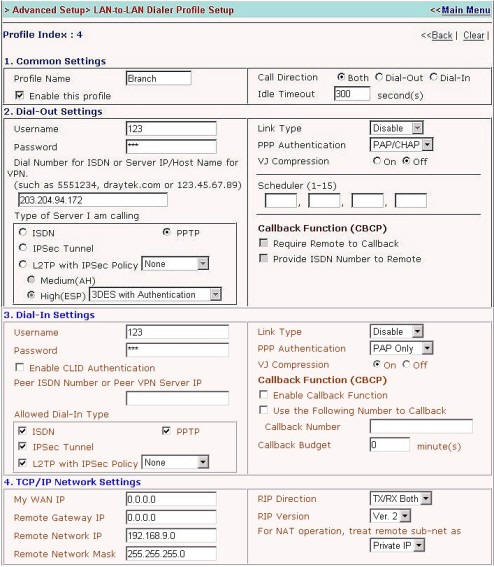
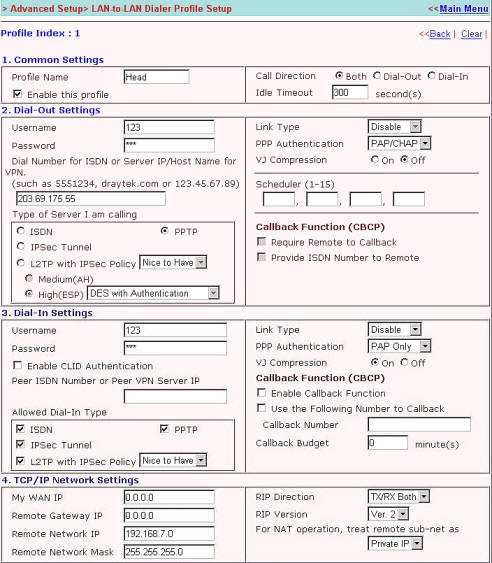
1.Create a LAN-to-LAN Dialer Profile in Advanced Setup
- Fill a new Profile Name "Head" and enable this profile
- Set Call Direction to "Both" (Suggestion!)
- Fill Username and Password for user and fill the server IP you want dial-out Sever IP for VNP field in Dial-out Setting;
and then select "PPTP" for the dail-out type.

- Fill Username and Password for dial-in user and select dial-int type in Dial-in
Setting.
- Configure TCP/IP Network Setting as followings:
My WAN IP 0.0.0.0 (Don't care at this point)
Remote Gateway IP 0.0.0.0 (Don't care at this point)
Remote Network IP 192.168.7.0
Remote Network Mask 255.255.255.0
And set "For NAT operation, treat remote sub-net as" to "Private IP"

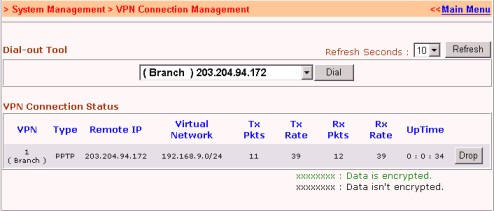
You need to click the botton of "Dial" in "VPN Connection Management"

Then the connection of VPN via PPTP is working.

IBS Lumber and Building Material Software Copyright © 2006 IBS Lumber Software Inc (TM)
Last modified: November 7, 2011

IBS Sales & Support 888-640-1252
Main Office 888-640-1252
Fax IBS 877-712-8937

All pages contained in this support website are not intended for general public distribution. Any material here can be considered private, confidential with various copyrights and restrictions against public release. You 'the browser' cannot legally release this information for general public distribution.

remote support: http://www.gotomeeting.com | remote support download program