|
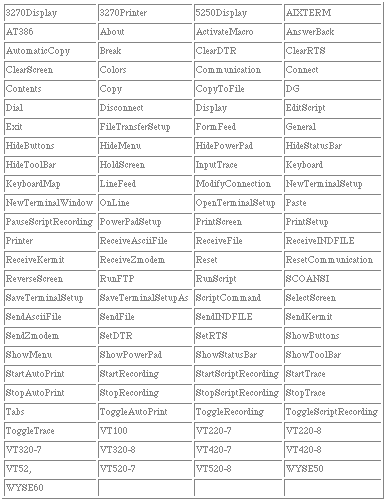
This page offers many of the script commands
used in the PowerTerm Script Language.
Special Note: The PowerTerm script language is
intended for users with programming skills.
append
Description
Append to a variable
Syntax
append varName value
[value value ...]
Notes
Appends all of the value arguments to the
current value of variable varName. If varName does not exist, it
is given a value equal to the concatenation of all the value
arguments.
This command provides an efficient way to
build up long variables incrementally.
Example
The following line appends variables y and z
to variable x:
append x $y $z
It is much more efficient than
x = $x$y$z
if $x is long.
Return to the top of the page
array
Description
Manipulate array variables.
Syntax
array option
arrayName [arg arg ...]
Notes
This command performs one of several
operations on the variable given by arrayName.
ArrayName must be the name of an existing
array variable.
The option argument determines what action is
carried out by the command.
A description of each valid option (which may
be abbreviated) follows:
array anymore arrayName searchId
Returns 1 if there are any more elements left
to be processed in an array search, 0 if all elements have
already been returned.
SearchId indicates which search on arrayName
to check, and must have been the return value from a previous
invocation of array startsearch.
This option is particularly useful if an array
has an element with an empty name, because the return value from
array nextelement does not indicate whether the
search has been completed.
array donesearch arrayName searchId
This command terminates an array search and
destroys all the states associated with that search. SearchId
indicates which search on arrayName to destroy, and must have
been the return value from a previous invocation of array
startsearch. Returns an empty string.
array names arrayName
Returns a list containing the names of all of
the elements in the array.
If there are no elements in the array, then an
empty string is returned.
array nextelement arrayName searchId
Returns the name of the next element in
arrayName, or an empty string if all elements of arrayName have
already been returned in this search. The searchId argument
identifies the search, and must have been the return value of an
array startsearch command.
Warning: If elements
are added to or deleted from the array, then all searches are
automatically terminated just as if array donesearch
had been invoked; this will cause array nextelement
operations to fail for those searches.
array size arrayName
Returns a decimal string giving the number of
elements in the array.
array startsearch arrayName
This command initializes an element-by-element
search through the array given by arrayName, such that
invocations of the array nextelement command will
return the names of the individual elements in the array.
When the search has been completed, the
array donesearch command should be invoked.
The return value is a search identifier that
must be used in array nextelement and array
donesearch commands; it allows multiple searches to be
underway simultaneously for the same array.
Return to the top of the page
break
Description
Abort looping command.
Syntax
break
Notes
This command may be invoked only inside the
body of a looping command such as for, foreach, or
while.
Example
break terminates the
while loop when variable x equals 5:
x = 0
while {$x < 10} {
incr x
if {$x == 5}
break
.
.
.
}
cd
Description
Change working directory.
Syntax
cd dirName
Notes
Changes the current working directory to
dirName.
Returns
Returns an empty string.
Example
Changes working directory to pterm:
cd pterm
Return to the top of the page
close
Description
Close an open file.
Syntax
close fileId
Notes
Closes the file given by fileId.
fileId must be the return value from a
previous invocation of the open command; after this
command, it should not be used anymore.
Returns
The normal result of this command is an empty
string, but errors are returned if there are problems in closing
the file.
Example
Opens file "sales.dat", reads 10 bytes, closes
it, and displays the data in a message box:
fileId = [open sales.dat]
data = [read $fileId 10]
close $fileId
message $data
Return to the top of the page
concat
Description
Join lists together.
Syntax
concat arg [arg ...]
Notes
This command treats each argument as a list
and concatenates them into a single list.
It also eliminates leading and trailing spaces
in the arguments and adds a single separator space between
arguments.
It permits any number of arguments.
Returns
Returns a single list with all elements.
Example
Returns {a b c d e f {g h}}:
concat a b {c d e} {f {g h}}
Return to the top of the page
continue
Description
Skip to the next iteration of a loop.
Syntax
continue
Notes
This command may be invoked only inside the
body of a looping command such as for, foreach, or
while.
It signals the innermost containing loop
command to skip the remainder of the loop's body but to continue
with the next iteration of the loop.
Example
Skips over the while loop commands when
variable x is less than 5.
x = 0
while {$x < 10} {
incr x
if {$x < 5}
continue
.
.
.
}
Return to the top of the page
cursor
Description
Moves the cursor to a new position.
Syntax
cursor row col
Notes
The cursor command changes the cursor position
but does not send any indication to the host.
Returns
Returns an empty string.
Example
cursor 4 34
Return to the top of the page
dde
Description
Use standard Microsoft Windows DDE mechanism
to communicate with other Windows applications.
Syntax
dde option [args...]
Notes
DDE permits applications to communicate with
each other. A DDE connection between two applications requires
that one will be a server and the other a client.
The DDE server application waits for requests
from DDE clients, and allows them to supply it with information
or receive information.
For example: A spreadsheet DDE server will let
clients get data from cells and put data into cells of a file.
PowerTerm can be a DDE client application or a
DDE server.
As a DDE server, PowerTerm uses the server
name PTW with topic PSL. Any application can request it to
execute commands and return the related return data.
A client application can access PowerTerm with
the dde Execute command or the dde Request command
and an item that is any valid PSL commands separated with ";".
The single DDE server PSL command is:
dde return value
After a dde request command is
executed, the PowerTerm DDE server sends the value from the last
dde return command executed in this request. If no dde
return command executed, it returns an empty answer.
Examples for PowerTerm as a DDE server might
be:
- Sending information to the host.
- Reading information from the
emulation screen.
As a DDE client, PowerTerm performs one of
several dde operations, depending on the option. The legal
options are:
dde initiate
applicationName topicName
Connects to the applicationName DDE server
with topicName. Returns a conversation id for use with
successive dde commands.
dde execute convId
command
Executes a server command. Returns an empty
string.
dde request convId
item
Returns an item from the server.
dde poke convId item
value
Changes an item of the server to the new
value. Returns an empty string.
dde terminate convId
Terminates a DDE conversation with the server.
Returns
Returns a value according to the option.
Examples
- 1 Initiates a DDE conversation with
Excel for a file products.xls. Reads three numbers from
the emulation screen. Puts them in three cells and gets
a calculated result from a forth cell. Sends the result
to the host computer.
- conv = [dde initiate
EXCEL PRODUCTS.XLS]
- dde poke
$conv R1C1 [screen-rect 1 1 10]
- dde poke
$conv R2C1 [screen-rect 2 1 10]
- dde poke
$conv R3C1 [screen-rect 3 1 10]
- result = [dde request $conv
R5C1]
- dde terminate
$conv
- send
$result
Note
- R5C1 indicates row 5 column 1.
- 2 Initiates a DDE conversation with
another PowerTerm which is connected to another
computer. Reads information from the screen (of the
other host) and sends it to its own host.
- conv = [dde initiate
PTW PSL]
- data = [dde request $conv {
- dde return
[screen 10 1 15 80]}]
- dde terminate
$conv
- send $data
Note
- The command {dde return [screen
10 1 15 80]} is executed in the PowerTerm DDE server.
Return to the top of the page
display
Description
Display a string on the current cursor
position.
Syntax
display string
Notes
The display command displays the string
on the screen, but does not send it to the host.
Returns
Returns an empty string.
Example
display "Hit ENTER
to continue"
Return to the top of the page
eof
Description
Check for end-of-file condition on an open
file.
Syntax
eof fileId
Notes
Returns 1 if an end-of-file condition has
occurred on fileId, 0 otherwise.
fileId must have been the return value from a
previous call to open.
Example
Opens file "input.dat" for reading and file
"output.dat" for writing. While not end-of-input file, reads a
line and writes it to the output file. Closes both files.
inFile = [open input.dat]
outFile = [open output.dat w]
gets $inFile data
while {! [eof $inFile]} {
puts $outFile $data
gets $inFile data
}
close $inFile
close $outFile
Return to the top of the page
eval
Description
Evaluate a PSL script.
Syntax
eval arg [arg ...]
Notes
eval takes one or
more arguments, which together comprise a PSL script containing
one or more commands.
eval concatenates
all its arguments in the same fashion as the concat
command and passes the concatenated string to the PSL
recursively.
Returns
Returns the result of the evaluation (or any
error generated by it).
Example
Assigns command variable with the expr
command, executes the command, and displays its output:
command = "expr 3 * 8"
result = [eval $command]
message $result
Return to the top of the page
exec
Description
Invoke a program.
Syntax
exec Program
Notes
This command executes a program. The Program
variable may contain parameters.
Example
Activates the Notepad program with parameter
pt.psl:
exec "notepad
pt.psl"
Return to the top of the page
expr
Description
Evaluate an expression.
Syntax
expr arg [arg arg
...]
Notes
Concatenates args (adding separator spaces
between them), evaluates the result as a PSL expression, and
returns the value.
The operators permitted in PSL expressions are
a subset of the operators permitted in the C language
expressions, and they have the same meaning and precedence as
the corresponding C language operators.
Expressions almost always yield numeric
results (integer or floating-point values).
PSL expressions support non-numeric operands
and string comparisons.
For example, the command "expr 8.2 + 6"
evaluates to 14.2.
Operands
A PSL expression consists of a combination of
operands, operators, and parentheses.
White space may be used between the operands
and operators and parentheses; it is ignored by the expression
processor.
Where possible, operands are interpreted as
integer values.
Integer values may be specified in decimal
(the normal case), in octal (if the first character of the
operand is 0, or in hexadecimal (if the first two characters of
the operand are 0x).
If an operand does not have one of the integer
formats, then it is treated as a floating-point number if that
is possible. Floating-point numbers may be specified in any of
the ways accepted by an ANSI-compliant C language compiler
(except that the f, F, l, and L suffixes will not be permitted
in most installations). For example, all of the following are
valid floating-point numbers: 2.1, 3., 6e4, 7.91e+16.
If no numeric interpretation is possible, then
an operand is left as a string (and only a limited set of
operators may be applied to it).
Operands may be specified in any of the
following ways:
- As an numeric value, either integer
or floating-point.
- As a PSL variable, using standard $
notation. The variable's value will be used as the
operand.
- As a string enclosed in
double-quotes.
The expression parser will perform backslash,
variable, and command substitutions on the information between
the quotes, and use the resulting value as the operand.
As a string enclosed in braces.
The characters between the open brace and
matching close brace will be used as the operand without any
substitutions.
As a PSL command enclosed in brackets.
The command will be executed and its result
will be used as the operand.
As a mathematical function whose arguments
have any of the above forms for operands, such as sin($x). See
below for a list of defined functions.
Where substitutions occur above (for example,
inside quoted strings), they are performed by the expression
processor.
However, an additional layer of substitution
may already have been performed by the command parser before the
expression processor was called.
As discussed below, it is usually best to
enclose expressions in braces to prevent the command parser from
performing substitutions on the contents.
For some examples of simple expressions,
suppose the variable x has the value 3 and the variable y has
the value 6.
Then the command on the left side of each of
the lines below will produce the value on the right side of the
line:
expr 3.1 + $x 6.1
expr 2 + "$x.$y" 5.6
expr 4 * [llength "6 2"] 8
expr {word one} < "word $x" 0
Operators
The valid operators are listed below, grouped
in decreasing order of precedence:
"-" "~" "!"
Unary minus, bit-wise NOT, logical NOT. None
of these operands may be applied to string operands, and
bit-wise NOT may be applied only to integers.
"*" "/" "%"
Multiply, divide, remainder. None of these
operands may be applied to string operands, and remainder may be
applied only to integers.
The remainder will always have the same sign
as the divisor and an absolute value smaller than the divisor.
"+" "-"
Add and subtract. Valid for any numeric
operands.
"<<" ">>"
Left and right shift. Valid for integer
operands only.
"<" ">" "<=" ">="
Boolean less, greater, less than or equal, and
greater than or equal.
Each operator produces 1 if the condition is
true, 0 otherwise.
These operators may be applied to strings as
well as numeric operands, in which case string comparison is
used.
"==" "!="
Boolean equal and not equal. Each operator
produces a zero/one result.
Valid for all operand types.
"&"
Bit-wise AND. Valid for integer operands only.
"^"
Bit-wise exclusive OR. Valid for integer
operands only.
"|"
Bit-wise OR. Valid for integer operands only.
"&&"
Logical AND. Produces a 1 result if both
operands are non-zero, 0 otherwise.
Valid for numeric operands only (integers or
floating-point).
"||"
Logical OR. Produces a 0 result if both
operands are zero, 1 otherwise.
Valid for numeric operands only (integers or
floating-point).
"x ? y : z"
If-then-else, as in the C language. If x
evaluates to non-zero, then the result is the value of y.
Otherwise, the result is the value of z.
The x operand must have a numeric value.
See the C language manual for more details on
the results produced by each operator.
All of the binary operators group
left-to-right within the same precedence level.
For example, the command
expr 4 * 2 < 7
returns 0.
The &&, ||, and ?: operators have "lazy
evaluation", just as in C, which means that operands are not
evaluated if they are not needed to determine the outcome.
For example, in the command
expr {$z ? [x] : [y]}
only one of [x] or [y] will actually be
evaluated, depending on the value of $z.
Note, however, that this is only true if the
entire expression is enclosed in braces; otherwise, PSL will
evaluate both [x] and [y] before invoking the expr
command.
Mathematical functions
PSL supports the following mathematical
functions in expressions:
acos cos hypot sinh
asin cosh log sqrt
atan exp log10 tan
atan2 floor pow tanh
ceil fmod sin
Each of these functions invokes the C language
math library function of the same name.
Conversion Functions
PSL also implements functions for conversion
between integers and floating-point numbers. A description of
these functions follows.
abs(arg)
Returns the absolute value of arg. Arg may be
either integer or floating-point, and the result is returned in
the same form.
double(arg)
If arg is a floating value, returns arg;
otherwise, converts arg to floating and returns the converted
value.
int(arg)
If arg is an integer value, returns arg;
otherwise, converts arg to integer by truncation and returns the
converted value.
round(arg)
If arg is an integer value, returns arg;
otherwise, converts arg to integer by rounding and returns the
converted value.
Types, Conversion and Precision
Conversion among internal representations for
integer, floating-point, and string operands is done
automatically as needed.
For arithmetic computations, integers are used
until some floating-point number is introduced, after which
floating-point is used.
For example:
expr 5 / 4
returns 1, while
expr 5 / 4.0
expr 5 / ( [string length "abcd"] + 0.0 )
both return 1.25.
Floating-point values are always returned with
a "." or an "e" so that they will not look like integer values.
For example:
expr 20.0/5.0
returns "4.0", not "4".
String Operations
String values may be used as operands of the
comparison operators, although the expression evaluator tries to
do comparisons as integer or floating-point when it can.
If one of the operands of a comparison is a
string and the other has a numeric value, the numeric operand is
converted back to a string.
For example, the commands
expr "0x03" > "2"
expr "0y" < "0x12"
both return 1. The first comparison is done
using integer comparison, and the second is done using string
comparison after the second operand is converted back to the
string "18".
Return to the top of the page
file
Description
Manipulate file names and attributes.
Syntax
file option name [arg
arg ...]
Notes
This command provides several operations on a
file's name or attributes. Name is the name of a file.
Option indicates what to do with the file
name. Any unique abbreviation for option is acceptable. A
description of the valid options follows.
file atime
name
Returns a decimal string giving the time at
which file name was last accessed. The time is measured in the
standard POSIX fashion as seconds from a fixed starting time
(often January 1, 1970).
If the file does not exist or its access time
cannot be queried, then an error is generated.
file dirname
name
Returns all of the characters in name up to
but not including the last slash character. If there are no
slashes in name, then returns ".". If the last slash in name is
its first character, then returns "\".
file exists
name
Returns 1 if file name exists, 0 otherwise.
file extension
name
Returns all of the characters in name after
and including the last dot in name. If there is no dot in name,
then returns the empty string.
file isdirectory
name
Returns 1 if file name is a directory, 0
otherwise.
file isfile
name
Returns 1 if file name is a regular file, 0
otherwise.
file mtime
name
Returns a decimal string giving the time at
which file name was last modified. The time is measured in the
standard POSIX fashion as seconds from a fixed starting time
(often January 1, 1970). If the file does not exist or its
modified time cannot be queried, then an error is generated.
file rootname
name
Returns all of the characters in name up to
but not including the last "." character in the name. If name
does not contain a dot, then returns name.
file size
name
Returns a decimal string giving the size of
file name in bytes. If the file does not exist or its size
cannot be queried, then an error is generated.
file stat
name varName
Invokes the stat system call on name, and uses
the variable given by varName to hold information returned from
the system call. VarName is treated as an array variable, and
the following elements of that variable are set: atime, ctime,
dev, mode, mtime, size, type.
Each element except type is a decimal string
with the value of the corresponding field from the stat return
structure. See the manual entry for stat for details on the
meanings of the values.
The type element gives the type of the file in
the same form returned by the command file type. This command
returns an empty string.
file tail
name
Returns all of the characters in name after
the last backslash. If name contains no backslashes, then
returns name.
file type
name
Returns a string giving the type of file name,
which will be one of file or directory.
Return to the top of the page
flush
Description
Flush buffered output for a file.
Syntax
flush file
Notes
Flushes any output that has been buffered for
file. file must have been the return value from a previous call
to open. it must refer to a file that was opened for writing.
Returns
Returns an empty string.
Example
Opens file "sales.dat" for writing. Writes 10
lines, flushes data to file, and then closes the file.
fileId = [open sales.dat w]
for {i = 0} {$i < 10} {incr i} {puts $fileId
"Line no $i"}
flush $fileId
close $fileId
Return to the top of the page
for
Description
"For'' loop.
Syntax
for start test next
body
Notes
for is a looping
command, similar in structure to the C language for statement.
The start, next, and body arguments must be PSL command strings,
and test is an expression string.
The for command first invokes PSL to
execute start. Then it repeatedly evaluates test as an
expression; if the result is non-zero it invokes PSL on body,
then invokes PSL on next, then repeats the loop. The command
terminates when test evaluates to 0.
If a continue command is invoked within
body, then any remaining commands in the current execution of
body are skipped, processing continues by invoking PSL on next,
then evaluating test, and so on.
If a break command is invoked within
body or next, then the for command will return
immediately.
The operation of break and continue
are similar to the corresponding statements in the C language.
Returns
Returns an empty string.
Example
Executes the message command 10 times:
for {i = 1} {i <= 10} {i = i + 1} {message "i
= $i"}
Return to the top of the page
foreach
Description
Iterate over all elements in a list.
Syntax
foreach varname list
body
Notes
In this command, varname is the name of a
variable, list is a list of values to assign to varname, and
body is a PSL script.
For each element of list (in order from left
to right), foreach assigns the contents of the field to
varname as if the index command had been used to extract the
field, then calls PSL to execute body. The break and
continue statements may be invoked inside body, with the
same effect as in the for command.
Returns
Returns an empty string.
Example
For each item in the list, a message is
displayed:
foreach var {Item1 Item2 Item3} {message "Item
: $var"}
Return to the top of the page
format
Description
Format a string in the style of sprintf.
Syntax
format formatString [arg
arg ...]
Notes
This command generates a formatted string in
the same way as the ANSI C sprintf procedure.
FormatString indicates how to format the
result, using % conversion specifiers as in sprintf, and the
additional arguments, if any, provide values to be substituted
into the result.
Returns and Formatting
The return value is the formatted string.
The command operates by scanning formatString
from left to right. Each character from the format string is
appended to the result string unless it is a percent sign.
If the character is "%", then it is not copied
to the result string. Instead, the characters following the %
character are treated as a conversion specifier.
The conversion specifier controls the
conversion of the next successive arg to articular format, and
the result is appended to the result string in place of the
conversion specifier.
If there are multiple conversion specifiers in
the format string, then each one controls the conversion of one
additional arg.
The format command must be given enough args
to meet the needs of all of the conversion specifiers in
formatString.
Each conversion specifier may contain up to
six different parts:
A set of flags, a minimum field width, a
precision, a length modifier, and a conversion character. Any of
these fields may be omitted except for the conversion character.
The fields that are present must appear in the
order given above. The paragraphs below discuss each of these
fields in turn.
If the % is followed by a decimal number and a
$, as in "%2$d", then the value to convert is not taken from the
next sequential argument. Instead, it is taken from the argument
indicated by the number, where 1 corresponds to the first arg.
If the conversion specifier requires multiple
arguments because of * characters in the specifier, then
successive arguments are used, starting with the argument given
by the number.
If there are any positional specifiers in
formatString, then all of the specifiers must be positional.
The second portion of a conversion specifier
may contain any of the following flag characters, in any order:
\-
Specifies that the converted argument should
be left-justified in its field (numbers are normally
right-justified with leading spaces if needed).
+
Specifies that a number should always be
printed with a sign, even if positive.
space
Specifies that a space should be added to the
beginning of the number if the first character is not a sign.
0
Specifies that the number should be padded on
the left with zeros instead of spaces.
#
Requests an alternate output form. For o and O
conversions, it guarantees that the first digit is always 0.
For x or X conversions, 0x or 0X
(respectively) will be added to the beginning of the result
unless it is zero. For all floating-point conversions (e, E, f,
g, and G), it guarantees that the result always has a decimal
point.
For g and G conversions, it specifies that
trailing zeros should not be removed.
The third portion of a conversion specifier is
a number giving a minimum field width for this conversion. It is
typically used to make columns line up in tabular printouts.
If the converted argument contains fewer
characters than the minimum field width then it will be padded
so that it is as wide as the minimum field width.
Padding normally occurs by adding extra spaces
on the left of the converted argument, but the 0 and \- flags
may be used to specify padding with zeros on the left or with
spaces on the right, respectively.
If the minimum field width is specified as *
rather than a number, then the next argument to the format
command determines the minimum field width; it must be a numeric
string.
The fourth portion of a conversion specifier
is a precision, which consists of a period followed by a number.
The number is used in different ways for different conversions.
For e, E, and f conversions, it specifies the
number of digits to appear to the right of the decimal point.
For g and G conversions, it specifies the
total number of digits to appear, including those on both sides
of the decimal point (however, trailing zeros after the decimal
point will still be omitted unless the # flag has been
specified).
For integer conversions, it specifies a
minimum number of digits to print (leading zeros will be added
if necessary). For s conversions, it specifies the maximum
number of characters to be printed; if the string is longer than
this, then the trailing characters will be dropped.
If the precision is specified with * rather
than a number then the next argument to the format command
determines the precision, it must be a numeric string.
The fourth part of a conversion specifier is a
length modifier, which must be h or l.
If it is h it, specifies that the numeric
value should be truncated to a 16-bit value before converting.
This option is rarely useful. The l modifier is ignored.
The last thing in a conversion specifier is an
alphabetic character that determines what kind of conversion to
perform.
The following conversion characters are
currently supported:
d
Convert integer to signed decimal string.
u
Convert integer to unsigned decimal string.
i
Convert integer to signed decimal string; the
integer may be in decimal, in octal (with a leading 0), or in
hexadecimal (with a leading 0x).
o
Convert integer to unsigned octal string.
x or X
Convert integer to unsigned hexadecimal
string, using digits "0123456789abcdef" for x and
"0123456789ABCDEF" for X.
c
Convert integer to the 8-bit character it
represents.
s
No conversion; just insert string.
f
Convert floating-point number to signed
decimal string of the form xx.yyy, where the number of y's is
determined by the precision (default: 6).
If the precision is 0, then no decimal point
is output.
e or E
Convert floating-point number to scientific
notation in the form x.yyye+-zz, where the number of y's is
determined by the precision (default: 6).
If the precision is 0, then no decimal point
is output. If the E form is used, then E is printed instead of
e.
g or G
If the exponent is less than \-4 or greater
than or equal to the precision, then convert floating-point
number as for %e or %E. Otherwise, convert as for %f.
Trailing zeros and a trailing decimal point
are omitted.
%
No conversion: just insert %.
For the numerical conversions, the argument
being converted must be an integer or floating-point string;
format converts the argument to binary and then converts it back
to a string according to the conversion specifier.
Return to the top of the page
gets
Description
Get file.
Syntax
gets fileId varName
Notes
This command reads the next line from the file
given by file and discards the terminating newline character.
If varName is specified, then the line is
placed in the variable by that name and the return value is a
count of the number of characters read (not including the
newline).
If the end of the file is reached before
reading any characters, then (-1) is returned and varName is set
to an empty string.
If varName is not specified, then the return
value will be the line (minus the newline character) or an empty
string if the end of the file is reached before reading any
characters.
An empty string will also be returned if a
line contains no characters except the newline, so eof
may have to be used to determine what really happened.
If the last character in the file is not a
newline character, then gets behaves as if there were an
additional newline character at the end of the file.
File must be the return value from a previous
call to open. it must refer to a file that was opened for
reading.
Returns
Returns the line length (if varName specified)
or the line itself.
Example
Gets first line from "sales.dat" file:
fileId = [open "sales.dat"]
gets $fileId data
close $fileId
Return to the top of the page
glob
Description
Return names of files that match patterns.
Syntax
glob swiches [pattern
pattern ...]
Notes
This command performs file name "globbing" in
a fashion similar to the CSH shell. It returns a list of the
files whose names match any of the pattern arguments.
If the initial arguments to glob start
with "-" then they are treated as swiches. The following
switches are currently supported:
-nocomplain
Allows an empty list to be returned without
error; without this switch, an error is returned if the result
list would be empty.
--
Marks the end of swiches. The argument
following this one will be treated as a pattern even if it
starts with a "-".
The pattern arguments may contain any of the
following special characters:
?
Matches any single character.
*
Matches any sequence of zero or more
characters.
[chars]
Matches any single character in chars. If
chars contains a sequence of the form a-b, then any character
between a and b (inclusive) will match.
x
Matches the character x.
{a,b,...}
Matches any of the strings a, b, etc.
As with csh, a "." at the beginning of a
file's name or just after a "\" must be matched explicitly or
with a {} construct. In addition, all "\" characters must be
matched explicitly.
Returns
Returns the files list.
Example
Displays all files with ".dat" extension:
message [glob *.dat]
Return to the top of the page
global
Description
Access global variables.
Syntax
global varname
[varname ...]
Notes
This command is ignored unless a PSL procedure
is being interpreted. If so, then it declares the given varnames
to be global variables rather than local ones. For the duration
of the current procedure (and only while executing in the
current procedure), any reference to any of the varnames will
refer to the global variable by the same name.
Returns
Returns an empty string.
Example
global varname1 varname2
Return to the top of the page
if
Description
Execute scripts conditionally.
Syntax
if expr1 [then] body1 [elseif
expr2 [then] body2] [elseif ...] [[else]
bodyN]
Notes
The if command evaluates expr1 as an
expression (in the same way that the expr command
evaluates its argument). The value of the expression must be a
boolean (a numeric value, where 0 is false and anything else is
true, or a string value such as true or yes for true and false
or no for false).
If it is true, then body1 is executed by
passing it to the PSL.
Otherwise, expr2 is evaluated as an expression
and if it is true, then body2 is executed, and so on.
If none of the expressions evaluates to true,
then bodyN is executed.
The then and else arguments are
optional, to make the command easier to read.
There may be any number of elseif
clauses, including zero.
BodyN may also be omitted as long as else is
omitted too.
Returns
The return value from the command is the
result of the body script that was executed, or an empty string,
if none of the expressions was non-zero and there was no bodyN.
Example
Displays "yes" if variable host equals "vax",
or "no" if it is not:
if {$host == "vax"} {message "yes"} else
{message "no"}
Return to the top of the page
incr
Description
Increment the value of a variable.
Syntax
incr varName
increment
Notes
Increments the value stored in the variable
whose name is varName. The value of the variable must be an
integer. If increment is supplied, then its value (which must be
an integer) is added to the value of variable varName;
otherwise, 1 is added to varName.
The new value is stored as a decimal string in
variable varName and also returned as result.
Returns
Returns the new varName value.
Example
Uses the incr command to increase
for loop counter:
for {i = 0} {$i < 10} {incr
i} {commands...}
Return to the top of the page
info
Description
Return information about the state of the PSL
interpreter.
Syntax
info option [arg arg
...]
Notes
This command provides information about
various internals of the PSL interpreter.
The legal options (which may be abbreviated)
are:
info args
procname
Returns a list containing the names of the
arguments to procedure procname, in order. Procname must be the
name of a PSL command procedure.
info body
procname
Returns the body of procedure procname.
Procname must be the name of a PSL command procedure.
info
cmdcount
Returns a count of the total number of
commands that have been invoked in this interpreter.
info commands
[pattern}
If pattern is not specified, returns a list of
names of all the PSL commands, including both the built-in
commands and the command procedures defined using the proc
command. If pattern is specified, only those names matching
pattern are returned. Matching is determined using the same
rules as for string match.
info complete
command
Returns 1 if command is a complete PSL command
in the sense of having no unclosed quotes, braces, brackets or
array element names, If the command does not appear to be
complete, then 0 is returned. This command is typically used in
line-oriented input environments to allow users to type in
commands that span multiple lines; if the command is not
complete, the script can delay evaluating it until additional
lines have been typed to complete the command.
info default
procname arg varname
Procname must be the name of a PSL command
procedure and arg must be the name of an argument to that
procedure. If arg does not have a default value, then the
command returns 0. Otherwise, it returns 1 and places the
default value of arg into variable varname.
info exists
varName
Returns 1 if the variable named varName exists
in the current context (either as a global or local variable),
returns 0 otherwise.
info globals
[pattern]
If pattern is not specified, returns a list of
all the names of currently defined global variables. If pattern
is specified, only those names matching pattern are returned.
Matching is determined using the same rules as for string match.
info level
[number]
If number is not specified, this command
returns a number giving the stack level of the invoking
procedure, or 0 if the command is invoked at top-level. If
number is specified, then the result is a list consisting of the
name and arguments for the procedure call at level number on the
stack. If number is positive, then it selects a particular stack
level (1 refers to the top-most active procedure, 2 to the
procedure it called, and so on); otherwise, it gives a level
relative to the current level (0 refers to the current
procedure, -1 to its caller, and so on).
See the uplevel command
uplevel00 for more information on what stack levels mean.
info
library
Returns the name of the library directory in
which standard PSL scripts are stored.
The default value for the library is "lib",
but it may be overridden by setting the PSL_LIBRARY environment
variable.
info locals
[pattern]
If pattern is not specified, returns a list of
all the names of currently defined local variables, including
arguments to the current procedure, if any.
Variables defined with the global and
upvar commands will not be returned.
If pattern is specified, only those names
matching pattern are returned. Matching is determined using the
same rules as for string match.
info procs
[pattern]
If pattern is not specified, returns a list of
all the names of PSL command procedures.
If pattern is specified, only those names
matching pattern are returned. Matching is determined using the
same rules as for string match.
info
script
If a PSL script file is currently being
evaluated, then this command returns the name of the innermost
file being processed. Otherwise, the command returns an empty
string.
info vars
[pattern]
If pattern is not specified, returns a list of
all the names of currently visible variables, including both
locals and currently visible globals. If pattern is specified,
only those names matching pattern are returned. Matching is
determined using the same rules as for string match.
Returns
Returns the appropriate info value.
Example
Displays "Yes" if variable varName exists,
otherwise "No":
if {[info exists varName] == "vax"} {message
"yes"} else {message "no"}
Return to the top of the page
join
Description
Create a string by joining together list
elements.
Syntax
join list
[joinString]
Notes
The list argument must be a valid PSL list.
This command returns the string formed by joining all of the
elements of list together with joinString separating each
adjacent pair of elements. The joinString argument defaults to a
space character.
Returns
Returns the list items separated by
joinString.
Example
Displays "1#2#3#4#5#6#7":
message [join {1 2 3 4 5 6 7} #]
Return to the top of the page
key
Description
Map a key to do a certain action.
Syntax
key [alt+][ctrl+][shift+]pckey
option [args...]
Notes
A PC key or a terminal key may be a
combination of control keys plus another key.
Performs one of several key operations,
depending on option. The legal options are:
key [alt+][ctrl+][shift+]pckey run scriptName
Maps a PC key to run a PSL script.
key [alt+][ctrl+][shift+]pckey do commands
Maps a PC key to executes PSL commands.
key [alt+][ctrl+][shift+]pckey send [alt+][ctrl+][shift+]vtkey
Maps a PC key to send a VT key.
Note
- The VT key above is a Virtual
Terminal key, not DIGITAL's VT emulator key.
The available PC keys are:
- A–Z, 0–9
- Special symbol keys: ( ` - = \ [ ] ;
' , . / )
- Space, Tab, Capslock, Esc, Backspace,
Return
- Right, Left, Up, Down arrows
- Insert, Delete, Home, End, Pgup, Pgdn
- F1–F12
- Print, Scroll, Pause
- Numlock, divide, multiply, subtract,
add, decimal, enter
- Numpad0–numpad9
The available VT keys are:
- Esc, Tab, Backspace, Return, F1–F20,
Help, Do
- udk6-udk20
- Pf1-Pf4, comma, minus, enter
- Numpad0–numpad9
- Insert, Remove, Find, Select, Next,
Prev
- delete, home, end, pgup, pgdn
- right, left, up, down arrows
- Divide, multiply, subtract, add,
decimal, enter
- C1–C4, eop, eol
Note
- Because of support for several
terminals, not all keys support all terminal keyboards,
yet it is quite easy to find the name of a requested key
in any terminal keyboard.
Return to the top of the page
Returns
Returns an empty string.
Examples
The following line maps ctrl+alt+f5 to
activate Notepad.exe:
key ctrl+alt+f5 do {exec notepad.exe}
The following line maps Shift+Alt+A to run
script Menu.psl:
key shift+alt+a run menu.psl
The following line maps the Scroll Lock key to
send do:
key scroll send do
The following line maps Alt+F6 to send Ctrl+g:
key alt+f6 send ctrl+g
Return to the top of the page
lappend
Description
Append list elements onto a variable.
Syntax
lappend varName value
[value value ...]
Notes
This command treats the variable given by
varName as a list and appends each of the value arguments to
that list as a separate element, with spaces between elements.
If varName does not exist, it is created as a
list with elements given by the value arguments. lappend is
similar to append except that the values are appended as list
elements rather than raw text. This command provides a
relatively efficient way to build up large lists. For example, "lappend
a $b" is much more efficient than "a = [concat $a [list
$b]]" when $a is long.
Returns
Returns the concatenated list.
Example
Displays "a b {1 2 3} d {1 2 3} 4 5":
a = {a b {1 2 3} d}
message [lappend a {1 2 3} 4 5]
Return to the top of the page
lindex
Description
Retrieve an element from a list.
Syntax
lindex list index
Notes
This command treats list as a PSL list and
returns the lindex'th element from it (0 refers to the first
element of the list). In extracting the element, lindex
observes the same rules concerning braces and quotes and
backslashes as the PSL command interpreter; however, variable
substitution and command substitution do not occur.
Returns
Returns the specified item. If lindex is
negative or greater than or equal to the number of elements in
value, then an empty string is returned.
Example
Displays the second item from a list in
variable List:
message [lindex $List 2]
Return to the top of the page
linsert
Description
Insert elements into a list.
Syntax
linsert list index
element [element element ...]
Notes
This command produces a new list from list by
inserting all of the element arguments just before the index
element of list. Each element argument will become a separate
element of the new list. If index is less than or equal to zero,
then the new elements are inserted at the beginning of the list.
If index is greater than or equal to the number of elements in
the list, then the new elements are appended to the list.
Returns
Returns the new list with old and new items.
Example
Inserts items "vax {hp digital ibm} dg" after
item 3 in List:
message [linsert $List 3 vax {hp digital ibm}
dg]
Return to the top of the page
list
Description
Create a list.
Syntax
list arg [arg arg
...]
Notes
This command returns a list comprised of all
the args. Braces and backslashes are added as necessary, so that
the index command may be used on the result to re-extract the
original arguments, and also so that eval may be used to execute
the resulting list, with arg comprising the command's name and
the other args comprising its arguments. list produces slightly
different results than concat:
concat removes one level of grouping before
forming the list, while list works directly from the original
arguments.
Returns
Returns the new list.
Examples
list a b {c d e} {f {g h}}
will return "a b {c d e} {f {g h}}"
concat a b {c d e} {f {g h}}
will return "a b c d e f {g h}"
Return to the top of the page
llength
Description
Count the number of elements in a list.
Syntax
llength list
Notes
Treats list as a list and returns a decimal
string giving the number of elements in it.
Example
llength {1 2 {ab cd fff} {18 19}}
will return 4.
Return to the top of the page
lrange
Description
Return one or more adjacent elements from a
list.
Syntax
lrange list first
last
Notes
list must be a valid PSL list. This command
will return a new list consisting of elements first through
last, inclusive. Last may be end (or any abbreviation of it) to
refer to the last element of the list. If first is less than
zero, it is treated as if it were zero. If last is greater than
or equal to the number of elements in the list, then it is
treated as if it were end. If first is greater than last, then
an empty string is returned.
"lrange list first first" does not always
produce the same result as "lindex list first" (although it
often does for simple fields that are not enclosed in braces).
It does, however, produce exactly the same results as "list
[lindex list first]".
Returns
Returns the items in the range.
Example
lrange "1 2 3 {3 4 5} a { b c} d" 2 5
will return "3 {3 4 5} a { b c}".
Return to the top of the page
lreplace
Description
Replace elements in a list with new elements.
Syntax
lreplace list first
last [element element ...]
Notes
lreplace returns a new list formed by
replacing one or more elements of list with the element
arguments. First gives the index in list of the first element to
be replaced.
If first is less than zero, then it refers to
the first element of list — the element indicated by first must
exist in the list. Last gives the index in list of the last
element to be replaced; it must be greater than or equal to
first. Last may be end (or any abbreviation of it) to indicate
that all elements between first and the end of the list should
be replaced.
The element arguments specify zero or more new
arguments to be added to the list in place of those that were
deleted. Each element argument will become a separate element of
the list. If no element arguments are specified, then the
elements between first and last are simply deleted.
Returns
Returns the new list.
Example
lreplace "1 2 3 {3 4 5} a { b c} d" 2 5 one
two
will return "1 2 one two d".
Return to the top of the page
lsearch
Description
See if a list contains a particular element.
Syntax
lsearch [mode] list
pattern
Notes
This command searches the elements of list to
see if one of them matches pattern.
If so, the command returns the index of the
first matching element.
If not, the command returns (-1).
The mode argument indicates how the elements
of the list are to be matched against pattern and it must have
one of the following values:
-exact
The list element must contain exactly the same
string as pattern.
-glob
Pattern is a glob-style pattern, which is
matched against each list element using the same rules as the
string match command.
-regexp
Pattern is treated as a regular expression and
matched against each list element using the same rules as the
regexp command.
If mode is omitted, then it defaults to
-glob.
Returns
Returns the index of the first matched item or
-1.
Example
lsearch "vax unix ibm" *n*
will find the item "unix" and return 1.
Return to the top of the page
lsort
Description
Sort the elements of a list.
Syntax
lsort [switches] list
Notes
This command sorts the elements of list,
returning a new list in sorted order. By default, ASCII sorting
is used, with the result returned in increasing order.
However, any of the following switches may be
specified before list to control the sorting process (unique
abbreviations are accepted):
-ascii
Uses string comparison with ASCII collation
order. This is the default.
-integer
Converts list elements to integers and uses
integer comparison.
-real
Converts list elements to floating-point
values and uses floating comparison.
-command command
Uses command as a comparison command. To
compare two elements, evaluate a PSL script consisting of
command with the two elements appended as additional arguments.
The script should return an integer less than, equal to, or
greater than zero if the first element is to be considered less
than, equal to, or greater than the second, respectively.
-increasing
Sorts the list in increasing order ("smallest"
items first). This is the default.
-decreasing
Sorts the list in decreasing order ("largest"
items first).
Returns
Returns the sorted list.
Example
Returns "ibm unix vax":
lsort "vax unix ibm"
Return to the top of the page
menu
Description
Change menu type.
Syntax
menu option
Notes
Changes PowerTerm main menu type.
menu hide
Removes the main menu.
menu minimize
Minimizes the main menu (with one click on the
menu, you can restore it).
menu restore
Restores the menu to its normal state.
Example
Hides the menu:
menu hide
Return to the top of the page
message
Description
Display a message.
Syntax
message string [title
text] [option]
Notes
Diplays the message string on the screen.
The "title text" option replaces the
default "PowerTerm" title with text.
The option can be one of the following and
will change the type of the message box:
info, error, question
Example
Displays the message "Hello" with title
"Welcome" and message type info:
message Hello title Welcome info
Return to the top of the page
open
Description
Open a file.
Syntax
open fileName
[access] [permissions]
Notes
This command opens a file and returns an
identifier that may be used in future invocations of commands
like read, gets, puts, and close.
fileName gives the name of the file to open.
The access argument indicates the way in which
the file is to be accessed. It may take two forms: either a
string or a list of POSIX access flags. It defaults to ``r''.
In the first form, access may have any of the
following values:
r
Opens the file for reading only; the file must
already exist.
r+
Opens the file for both reading and writing;
the file must already exist.
w
Opens the file for writing only. Truncate it
if it exists. If it does not exist, creates a new file.
w+
Opens the file for reading and writing.
Truncates it if it exists. If it does not exist, creates a new
file.
a
Opens the file for writing only. The file must
already exist, and the file is positioned so that new data is
appended to the file.
a+
Opens the file for reading and writing. If the
file does not exist, creates a new empty file.
Sets the initial access position to the end of
the file.
In the second form, access consists of a list
of any of the following flags, all of which have the standard
POSIX meanings. One of the flags must be either RDONLY, WRONLY,
or RDWR.
RDONLY
Opens the file for reading only.
WRONLY
Opens the file for writing only.
RDWR
Opens the file for both reading and writing.
APPEND
Sets the file pointer to the end of the file
prior to each write.
CREAT
Creates the file if it does not already exist
(without this flag, it is an error for the file not to exist).
EXCL
If CREAT is specified also, an error is
returned if the file already exists.
NOCTTY
If the file is a terminal device, this flag
prevents the file from becoming the controlling terminal of the
process.
NONBLOCK
Prevents the process from blocking while
opening the file. For details refer to your system documentation
on the open system call's O_NONBLOCK flag.
TRUNC
If the file exists, it is truncated to zero
length. If a new file is created as part of opening it,
permissions (an integer) is used to set the permissions for the
new file in conjunction with the process's file mode creation
mask. permissions defaults to 0666. If a file is opened for both
reading and writing, then seek must be invoked between a read
and a write, or vice versa (this restriction does not apply to
command pipelines opened with open).
Returns
Returns the file ID.
Example
Opens file "output.dat" for writing, writes
data and closes:
File = [open output.dat w]
puts $File "message test"
close $File
Return to the top of the page
open-setup-file
Description
Open setup file.
Syntax
open-setup-file
file-name
Notes
Opens a saved setup file, replacing the
PowerTerm parameters. (Similar to the Open command on the File
menu).
Returns
Returns an empty string.
Example
Opens setup file "prog.pts":
open-setup-file prog.pts
Return to the top of the page
proc
Description
Create a PSL procedure.
Syntax
proc name args body
Notes
The proc command creates a new PSL procedure
named name, replacing any existing command or procedure there
may have been by that name. Whenever the new command is invoked,
the contents of body will be executed by the PSL interpreter.
Args specifies the formal arguments to the procedure. It
consists of a list, possibly empty, each of those elements
specifies one argument. Each argument specifier is also a list
with either one or two fields. If there is only a single field
in the specifier, then it is the name of the argument; if there
are two fields, then the first is the argument name and the
second is its default value.
When name is invoked, a local variable will be
created for each of the formal arguments to the procedure. Its
value will be the value of corresponding argument in the
invoking command or the argument's default value.
Arguments with default values need not be
specified in a procedure invocation. However, there must be
enough actual arguments for all the formal arguments that do not
have defaults, and there must not be any extra actual arguments.
There is one special case to permit procedures with variable
numbers of arguments: If the last formal argument has the name
args, then a call to the procedure may contain more actual
arguments than the procedure has formal. In this case, all of
the actual arguments starting at the one that would be assigned
to args are combined into a list (as if the list command had
been used). This combined value is assigned to the local
variable args.
When body is being executed, variable names
normally refer to local variables, which are created
automatically when referenced and deleted when the procedure
returns. One local variable is automatically created for each of
the procedure's arguments.
Global variables can only be accessed by
invoking the global command or the upvar command.
When a procedure is invoked, the procedure's
return value is the value specified in a return command. If the
procedure does not execute an explicit return, then its return
value is the value of the last command executed in the
procedure's body. If an error occurs while executing the
procedure body, then the procedure-as-a-whole will return that
same error.
Returns
Returns an empty string.
Example
Defines a recursive factorial procedure:
proc factorial x {
if {$x == 1} {return 1}
return [expr {$x * [factorial [expr $x - 1]]}]
}
message [facorial 4] will display 24.
Return to the top of the page
puts
Description
Write to a file.
Syntax
puts [-nonewline]
fileId string
Notes
Writes the characters given by string to the
file given by fileId. FileId must have been the return value
from a previous call to open. It must refer to a file that was
opened for writing.
puts normally
outputs a newline character after string, but this feature may
be suppressed by specifying the -nonewline switch. Output
to files is buffered internally by PSL. The flush command may be
used to force buffered characters to be output.
Returns
Returns an empty string.
Example
Opens file "data" for writing, writes data,
and closes:
outFile = [open data w]
puts $outFile Information
close $outFile
Return to the top of the page
pwd
Description
Return the current working directory.
Syntax
pwd
Notes
Returns the path name of the current working
directory.
Example
Displays the current working directory:
message [pwd]
Return to the top of the page
read
Description
Read from a file.
Syntax
read [-nonewline]
fileId
or
read fileId numBytes
Notes
In the first form, all of the remaining bytes
are read from the file given by fileId. They are returned as the
result of the command. If the -nonewline switch is
specified, then the last character of the file is discarded if
it is a newline.
In the second form, the extra argument
specifies how many bytes to read: exactly this many bytes will
be read and returned, unless there are fewer than numBytes bytes
left in the file. In this case, all the remaining bytes are
returned. FileId must the return value from a previous call to
open, it must refer to a file that was opened for reading.
Returns
Returns the data read from the file.
Example
Opens file "data" for reading, reads 10 bytes,
and closes:
inFile = [open data]
data = [read $inFile 20]
close $inFile
Return to the top of the page
regexp
Description
Match a regular expression against a string.
Syntax
regexp [switches] exp
string [matchVar] [subMatchVar subMatchVar ...]
Notes
Determines whether the regular expression exp
matches part or all of string and returns 1 if it does, 0 if it
does not.
If additional arguments are specified after
string, then they are treated as the names of variables in which
to return information about which part(s) of string matched exp.
MatchVar will be set to the range of string
that matched all of exp. The first subMatchVar will contain the
characters in string that matched the leftmost parenthesized
subexpression within exp. The next subMatchVar will contain the
characters that matched the next parenthesized subexpression to
the right in exp, and so on.
If the initial arguments to regexp start with
"-", then they are treated as switches. The following switches
are supported:
-nocase
Causes uppercase characters in string to be
treated as lower case during the matching process.
-indices
Changes what is stored in the subMatchVars.
Instead of storing the matching characters from string, each
variable will contain a list of two decimal strings giving the
indices in string of the first and last characters in the
matching range of characters.
--
Marks the end of switches. The argument
following this one will be treated as exp even if it starts with
a "-".
If there are more subMatchVar's than
parenthesized subexpressions within exp, or if a particular
subexpression in exp does not match the string (for example,
because it was in a portion of the expression that was not
matched), then the corresponding subMatchVar will be set to "-1
-1" if -indices has been specified or to an empty string
otherwise.
Regular Expressions
A regular expression is zero or more branches,
separated by "|". It matches anything that matches one of the
branches. A branch is zero or more pieces, concatenated.
It matches a match for the first, followed by
a match for the second, and so on.
A piece is an atom possibly followed by "*",
"+", or "?".
An atom followed by "*" matches a sequence of
0 or more matches of the atom. An atom followed by "+" matches a
sequence of 1 or more matches of the atom. An atom followed by
"?" matches a match of the atom, or the null string.
An atom is a regular expression in parentheses
(matching a match for the regular expression), a range (see
below), "." (matching any single character), "^" (matching the
null string at the beginning of the input string), "$" (matching
the null string at the end of the input string), a "\" followed
by a single character (matching that character), or a single
character with no other significance (matching that character).
A range is a sequence of characters enclosed
in "[]". It normally matches any single character from the
sequence. If the sequence begins with "^", it matches any single
character not from the rest of the sequence. If two characters
in the sequence are separated by "-", this is shorthand for the
full list of ASCII characters between them (for example, "[0–9]"
matches any decimal digit). To include a literal "]" in the
sequence, make it the first character (following a possible
"^"). To include a literal "-", make it the first or last
character.
Choosing Among Alternative Matches
In general there may be more than one way to
match a regular expression to an input string. For example,
consider the following command:
regexp (a*)b* aabaaabb x y
Considering only the rules given so far, x and
y could end up with the values aabb and aa, aaab and aaa, ab and
a, or any of several other combinations. To resolve this
potential ambiguity, regexp chooses among alternatives using the
rule "first then longest". In other words, it considers the
possible matches in order, working from left to right across the
input string and the pattern, and it attempts to match longer
pieces of the input string before shorter ones. More
specifically, the following rules apply in decreasing order of
priority:
Rule 1:
If a regular expression could match two
different parts of an input string, then it will match the one
that begins earliest.
Rule 2:
If a regular expression contains "|"
operators, then the leftmost matching subexpression is chosen.
Rule 3:
In "*", "+", and "?" constructs, longer
matches are chosen in preference to shorter ones.
Rule 4:
In sequences of expression components, the
components are considered from left to right. In the example
from above, (a*)b* matches aab: the (a*) portion of the pattern
is matched first and it consumes the leading aa, then the b*
portion of the pattern consumes the next b.
Returns
Returns 1 if it matches, 0 if it does not.
Example
Consider the following example:
regexp (ab|a)(b*)c
abc x y z
After this command, x will be abc, y will be
ab, and z will be an empty string.
Rule 4 specifies that (ab|a) gets first shot
at the input string, and Rule 2 specifies that the ab
subexpression is checked before the a subexpression. Thus the b
has already been claimed before the (b*) component is checked,
and (b*) must match an empty string.
Return to the top of the page
regsub
Description
Perform substitutions based on regular
expression pattern matching.
Syntax
regsub [switches] exp
string subSpec varName
Notes
This command matches the regular expression
exp against string, and it copies string to the variable whose
name is given by varName. The command returns 1 if there is a
match and 0 if there is not. If there is a match, then while
copying string to varName, the portion of string that matched
exp is replaced with subSpec. If subSpec contains a "&" or "0",
then it is replaced in the substitution with the portion of
string that matched exp.
If subSpec contains a "n", where n is a digit
between 1 and 9, then it is replaced in the substitution with
the portion of string that matched the n-th parenthesized
subexpression of exp. Additional backslashes may be used in
subSpec to prevent special interpretation of "&" or "0" or "n"
or backslash.
The use of backslashes in subSpec tends to
interact badly with the PSL parser's use of backslashes, so it
is generally safest to enclose subSpec in braces if it includes
backslashes.
If the initial arguments to regexp start with
"-", then they are treated as switches. The following switches
are supported:
-all
All ranges in string that match exp are found
and substitution is performed for each of these ranges. Without
this switch, only the first matching range is found and
substituted.
If -all is specified, then "&" and "n"
sequences are handled for each substitution, using the
information from the corresponding match.
-nocase
Uppercase characters in string will be
converted to lowercase before matching against exp; however,
substitutions specified by subSpec use the original unconverted
form of string.
--
Marks the end of switches. The argument
following this one will be treated as exp even if it starts with
a "-".
Returns
Returns 1 if it matches, 0 if it does not.
Example
Returns 1 and variable new will contain
"*abc*abc*def".
The "abc" portion of "abcdef" was substituted
by "*abc*abc*" and the "def" portion was left a the end.
regsub (ab|a)(b*)c abcdef *&*&* new
Return to the top of the page
rename
Description
Rename or delete a command.
Syntax
rename oldName
newName
Notes
Renames the command that used to be called
oldName so that it is now called newName. If newName is an empty
string, then oldName is deleted.
Returns
Returns an empty string as result.
Example
Renames the for command to loop
and then uses it:
rename for loop
loop {i = 0} {$i < 10} {incr i} {commands...}
Return to the top of the page
return
Description
Return from a procedure.
Syntax
return [-code code] [-errorcode
code] [string]
Notes
Returns immediately from the current procedure
(or top-level command or run command), with string as the
return value. If string is not specified, then an empty string
will be returned as result.
Exceptional Returns
In the usual case where the -code
option is not specified, the procedure will return normally.
However, the -code option may be used to generate an
exceptional return from the procedure. Code may have any of the
following values:
ok
Normal return: same as if the option is
omitted.
error
Error return: same as if the error command
were used to terminate the procedure, except for handling of
errorInfo and errorCode variables (see below).
return
The current procedure will return with a
completion code of PSL_RETURN, so that the procedure that
invoked it will return also.
break
The current procedure will return with a
completion code of PSL_BREAK, which will terminate the innermost
nested loop in the code that invoked the current procedure.
continue
The current procedure will return with a
completion code of PSL_CONTINUE, which will terminate the
current iteration of the innermost nested loop in the code that
invoked the current procedure.
value
Value must be an integer; it will be returned
as the completion code for the current procedure.
The -code option is rarely used. It is
provided so that procedures that implement new control
structures can reflect exceptional conditions back to their
callers.
An additional option, -errorcode, may
be used to provide additional information during error returns.
This option is ignored unless code is error.
If the -errorcode option is specified,
then code provides a value for the errorcode variable. If the
option is not specified then errorcode will default to NONE.
Returns
Returns the string specified or an empty
string.
Example
Defines a division procedure with two
parameters.
If the second parameter is zero, returns with
continue error code; otherwise, returns division of the
two.
In the rest of the code, in a loop: inputs two
numbers and activates the divide procedure. If second parameter
is zero divide will act as a continue command and return
to start of the while loop; otherwise, division result
will be displayed and the loop will be terminated.
proc divide {x y} {
if {$y == 0} {return -code continue 0} else {
return [expr $x / $y]}
}
while {1} {
# commands to input data for variables x & y
...
result = [divide $x $y]
message "$x / $y = $result"
break
}
Return to the top of the page
run
Description
Evaluate a file as a PSL script.
Syntax
run fileName
[parameters...]
Notes
Read file fileName and pass the contents to
the PSL interpreter as a script to evaluate in the normal
fashion. The return value from run is the return value of
the last command executed from the file. If an error occurs in
evaluating the contents of the file, then the run command
will return that error. If a return command is invoked
from within the file, then the remainder of the file will be
skipped and the run command will return normally with the
result from the return command.
If parameters are included, variables named
$p1 to $pN will exist, according to number of parameters.
Returns
Returns the value from the last command in the
script.
Example
run test.psl
Return to the top of the page
scan
Description
Parse string using conversion specifiers in
the style of sscanf.
Syntax
scan string format
varName [varName ...]
Notes
This command parses fields from an input
string in the same fashion as the ANSI C sscanf procedure and
returns a count of the number of fields successfully parsed.
String gives the input to be parsed and format
indicates how to parse it, using % conversion specifiers as in
sscanf. Each varName gives the name of a variable; when a field
is scanned from string, the result is converted back into a
string and assigned to the corresponding variable.
Details on Scanning
scan operates by
scanning string and formatString together. If the next character
in formatString is a blank or tab, then it is ignored.
Otherwise, if it is not a % character, then it must match the
next non-white-space character of string. When a % is
encountered in formatString, it indicates the start of a
conversion specifier.
A conversion specifier contains three fields
after the %:
a *, which indicates that the converted value
is to be discarded instead of assigned to a variable; a number
indicating a maximum field width; and a conversion character.
All of these fields are optional except for
the conversion character.
When scan finds a conversion specifier
in formatString, it first skips any white-space characters in
string. Then it converts the next input characters according to
the conversion specifier and stores the result in the variable
given by the next argument to scan. The following conversion
characters are supported:
d
The input field must be a decimal integer. It
is read in and the value is stored in the variable as a decimal
string.
o
The input field must be an octal integer. It
is read in and the value is stored in the variable as a decimal
string.
x
The input field must be a hexadecimal integer.
It is read in and the value is stored in the variable as a
decimal string.
c
A single character is read in and its binary
value is stored in the variable as a decimal string. Initial
white space is not skipped in this case, so the input field may
be a white-space character. This conversion is different from
the ANSI standard in that the input field always consists of a
single character and no field width may be specified.
s
The input field consists of all the characters
up to the next white-space character; the characters are copied
to the variable.
e or f or
g
The input field must be a floating-point
number consisting of an optional sign, a string of decimal
digits possibly containing a decimal point, and an optional
exponent consisting of an e or E followed by an
optional sign and a string of decimal digits. It is read in and
stored in the variable as a floating-point string.
[chars]
The input field consists of any number of
characters in chars. The matching string is stored in the
variable. If the first character between the brackets is a "]",
then it is treated as part of chars rather than the closing
bracket for the set.
[^chars]
The input field consists of any number of
characters not in chars.
The matching string is stored in the variable.
If the character immediately following the "^" is a "]", then it
is treated as part of the set rather than the closing bracket
for the set.
The number of characters read from the input
for a conversion is the largest number that makes sense for that
particular conversion (for example, as many decimal digits as
possible for %d, as many octal digits as possible for %o, and so
on).
The input field for a given conversion
terminates either when a white-space character is encountered or
when the maximum field width has been reached, whichever comes
first. If a "*" is present in the conversion specifier, then no
variable is assigned and the next scan argument is not consumed.
Returns
Returns the number of scanned parameters and
fills the variables with their values.
Example
Scans the following string and sets the
variables:
var1 = 123 var2 = 65 ("A" ASCII) var3 = unix.
scan "123 A unix" "%d %c %s" var1 var2 var3
Return to the top of the page
screen
Description
Copy data from the screen.
Syntax
screen startRow
startCol [endRow] endCol
Notes
screen copies
complete lines from the starting position (startRow, startCol)
to and including the end position (endRow, endCol).
If endRow is not specified, endRow equals
startRow.
Returns
Returns the data copied from the screen.
Example
Consider the following screen:
Line 1 : "line 1: 1234567890"
Line 2 : "line 2: 1234567890"
Line 3 : "line 3: 1234567890"
Line 4 : "line 4: 1234567890"
data = [screen 2 15 4 10]
Sets variable data to screen data from (2, 15)
to (4, 10) :
"7890\nline 2: 1234567890\nline 3: 12"
where "\n" is a line separator.
Return to the top of the page
screen-rect
Description
Copy data from the screen.
Syntax
screen-rect startRow
startCol [endRow] endCol
Notes
screen-rect copies
rectangular data from the starting position (startRow, startCol)
to and including the end position (endRow, endCol).
If endRow is not specified, endRow equals
startRow.
Returns
Returns the data copied from the screen.
Example
Consider the following screen:
Line 1 : "line 1: 1234567890"
Line 2 : "line 2: 1234567890"
Line 3 : "line 3: 1234567890"
Line 4 : "line 4: 1234567890"
data = [screen-rect 2 2 4 15]
Sets variable data to screen data from (2, 2)
to (4, 15) :
"ine 1: 1234567\nine 2: 1234567\nine 3:
1234567\n"
where "\n" is a line separator.
Return to the top of the page
seek
Description
Change the access position for an open file.
Syntax
seek fileId offset
[origin]
Notes
Changes the current access position for
fileId. FileId must have been the return value from a previous
call to open.
The offset and origin arguments specify the
position at which the next read or write will occur for fileId.
Offset must be an integer (which may be negative) and origin
must be one of the following:
start
The new access position will be offset bytes
from the start of the file.
current
The new access position will be offset bytes
from the current access position; a negative offset moves the
access position backwards in the file.
end
The new access position will be offset bytes
from the end of the file. A negative offset places the access
position before the end-of-file, and a positive offset places
the access position after the end-of-file.
The origin argument defaults to start.
Returns
Returns an empty string.
Example
Opens file "file1" for reading. Moves to
position 55 in the file. Reads 10 bytes to variable data and
closes file:
fileId = [open file1]
seek $fileId 55 start
data = [read $fileId 10]
close $fileId
Return to the top of the page
send
Description
Send data to the host.
Syntax
send data
Notes
Sends data as though it was typed from the
keyboard.
Returns
Returns an empty string.
Example
The host receives the following data and shows
the current directory:
send "dir^M"
Note
- "^M" sends ctrl-m. The "^" sign
followed by a letter represents the control code of that
letter.
Return to the top of the page
session
Description
Modify the communication session status.
Syntax
session option
Notes
Performs one of several session operations,
depending on option. The legal options are:
session open
Opens a session according to communication
parameters previously defined with the set command.
session modify
Modifies the current session according to
communication parameters previously defined with the set
command.
session close
Closes the current session.
Returns
Returns an empty string.
Examples
- 1 Opens a COM session with the
following parameters:
set comm-type com
set port-number 2
set baud-rate 19200
set protocol-type xonxoff
session open
- 2 Modifies the COM session to 9600
baud-rate:
set baud-rate 9600
session modify
- 3 Opens the setup file "abc.pts" for
working with specific PowerTerm parameters for the "abc"
host (similar to the Open command on the File menu).
Then opens a Telnet session to host "abc" (similar to
the Connect command on the Communication menu).
open-setup-file abc.pts
set comm-type telnet
set host-name abc
session open
- 4 Opens a lat session to host "abc"
through DIGITAL PATHWORKS 32:
set comm-type lat
set service-name abc
session open
- 5 Opens a lat session to host "abc"
through Novell's NetWare for LAT:
set comm-type lat
set server-name NovellServerName
set service-name abc
session open
- 6 Closes the current session.
session close
Note
- In order to automatically connect to
a host, make the appropriate script. Click Properties on
the File menu in the Program Manager and add the name of
the script (with parameters) to the Command Line. Every
time the icon is clicked, PowerTerm will run the script
and open the session.
Consider the following script, named
"telnet.psl", to connect to a host with telnet protocol:
set comm-type telnet
set host-name $p1
session open
Click Properties on the File menu, and enter:
C:\PTW\PTW.EXE telnet.psl HostName
Every time you click the icon, "telnet.psl"
will execute and connect to HostName.
In this manner you can create several icons
for automatic connection to all your organization computers.
Return to the top of the page
set
Description
Set a new value to a PowerTerm parameter.
Syntax
set parameter value
[value2]
Notes
Sets a new value to one of the PowerTerm
parameters.
set baud-rate value
Sets the serial communication baud rate to one
of the following values:
300, 600, 1200, 1800, 2400, 3600, 4800, 7200,
9600, 14400, 19200, 38400, 57600, 115200.
set protocol-type
value
Sets the serial communication protocol type to
one of the following values: none, xonxoff, hardware.
set parity bits type
Sets the serial communication parity bits and
type to one of the following values:
bits: 7, 8.
type: none, even, odd, mark, space.
set stop-bits value
Sets the serial communication stop bits to one
of the following values: 1, 2.
set comm-type value
Sets the communication type to one of the
following values:
com: Serial communication.
int14: Communication with BIOS interrupt 14.
lat: Network communication with DIGITAL LAT.
cterm: Serial communication with DIGITAL
CTERM.
telnet: Network communication with Tcpip
Telnet.
nwlat: Network communication NetWare for LAT.
set port-number
value
Sets the serial communication port number to
one of the following values: 1, 2, 3, 4.
set host-name string
Sets the telnet and cterm communication host
name.
set service-name
string
Sets the lat communication service name (may
also specify a host name).
set user-name string
Sets the NetWare for LAT user name.
set server-name
string
Sets the NetWare for LAT user name.
set session-name
string
Sets the communication session name on the
emulation's title bar.
Returns
Returns an empty string.
Return to the top of the page
split
Description
Split a string into a proper PSL list.
Syntax
split string
[splitChars]
Notes
Returns a list created by splitting string at
each character that is in the splitChars argument. Each element
of the result list will consist of the characters from string
that lie between instances of the characters in splitChars.
Empty list elements will be generated if string contains
adjacent characters in splitChars, or if the first or last
character of string is in splitChars. If splitChars is an empty
string, then each character of string becomes a separate element
of the result list. SplitChars defaults to the standard
white-space characters.
Returns
Returns the split string.
Examples
split "comp.unix.misc" "."
returns "comp unix misc"
split "Hello world" ""
returns "H e l l o { } w o r l d"
Return to the top of the page
string
Description
Manipulate strings.
Syntax
string option arg
[arg ...]
Notes
Performs one of several string operations,
depending on option. The legal options (which may be
abbreviated) are:
string compare
string1 string2
Performs a character-by-character comparison
of strings string1 and string2 in the same way as the C strcmp
procedure. Returns -1, 0, or 1, depending on whether string1 is
lexicographically less than, equal to, or greater than string2.
string first string1
string2
Searches string2 for a sequence of characters
that exactly match the characters in string1. If found, returns
the index of the first character in the first such match within
string2. If not found, returns -1.
string index string
charIndex
Returns the charIndex'th character of the
string argument. A charIndex of 0 corresponds to the first
character of the string. If charIndex is less than 0 or greater
than or equal to the length of the string, then an empty string
is returned.
string last string1
string2
Searches string2 for a sequence of characters
that exactly match the characters in string1. If found, returns
the index of the first character in the last such match within
string2. If there is no match, then returns -1.
"string last ab 123abc456ab12", will
return 9.
string length string
Returns a decimal string giving the number of
characters in string.
string match pattern
string
If pattern matches string, returns 1, if it
does not, returns 0. For the two strings to match, their
contents must be identical except that the following special
sequences may appear in pattern:
*
Matches any sequence of characters in string,
including a null string.
?
Matches any single character in string.
[chars]
Matches any character in the set given by
chars. If a sequence of the form x-y appears in chars, then any
character between x and y, inclusive, will match.
\x
Matches the single character x. This provides
a way of avoiding the special interpretation of the characters
*?[]\e in pattern.
string range string
first last
Returns a range of consecutive characters from
string, starting with the character whose index is first and
ending with the character whose index is last. An index of 0
refers to the first character of the string. Last may be end
to refer to the last character of the string. If first is less
than zero, then it is treated as if it were zero, and if last is
greater than or equal to the length of the string, then it is
treated as if it were end. If first is greater than last,
then an empty string is returned.
string tolower
string
Returns a value equal to string except that
all uppercase letters have been converted to lower case.
string toupper
string
Returns a value equal to string except that
all lowercase letters have been converted to upper case.
string trim string
[chars]
Returns a value equal to string except that
any leading or trailing characters from the set given by chars
are removed.
If chars is not specified, then white space is
removed (spaces, tabs, newlines, and carriage returns).
string trimleft
string [chars]
Returns a value equal to string except that
any leading characters from the set given by chars are removed.
If chars is not specified, then white space is removed (spaces,
tabs, newlines, and carriage returns).
string trimright
string [chars]
Returns a value equal to string except that
any trailing characters from the set given by chars are removed.
If chars is not specified, then white space is removed (spaces,
tabs, newlines, and carriage returns).
Returns
Returns the converted string.
Example
Returns "UNIX".
string toupper Unix
Return to the top of the page
switch
Description
Evaluate one of several scripts, depending on
a given value.
Syntax
switch [options]
string [pattern body [pattern body ...]]
or
switch [options]
string {pattern body [pattern body...]}
Notes
The switch command matches its string
argument against each of the pattern arguments in order.
As soon as it finds a pattern that matches
string, it evaluates the following body argument by passing it
recursively to the PSL interpreter and returns the result of
that evaluation.
If the last pattern argument is default, then
it matches anything.
If no pattern argument matches string and no
default is given, then the switch command returns an empty
string.
If the initial arguments to switch
start with "-", then they are treated as options. The following
options are currently supported:
-exact
Use exact matching when comparing string to a
pattern. This is the default.
-glob
When matching string to the patterns, use
glob-style matching (i.e. the same as implemented by the
string match command).
-regexp
When matching string to the patterns, use
regular expression matching (i.e. the same as implemented by the
regexp command).
--
Marks the end of options. The argument
following this one will be treated as string even if it starts
with a "-".
Two syntaxes are provided for the pattern and
body arguments.
The first uses a separate argument for each of
the patterns and commands. This form is convenient if
substitutions are desired on some of the patterns or commands.
The second form places all of the patterns and
commands together into a single argument. The argument must have
proper list structure, with the elements of the list being the
patterns and commands.
The second form makes it easy to construct
multiline switch commands, because the braces around the whole
list make it unnecessary to include a backslash at the end of
each line.
Since the pattern arguments are in braces in
the second form, no command or variable substitutions are
performed on them. This makes the behavior of the second form
different than the first form in some cases.
If a body is specified as "-'', it means that
the body for the next pattern should also be used as the body
for this pattern (if the next pattern also has a body of "-",
then the body after that is used, and so on). This feature makes
it possible to share a single body among several patterns.
Returns
Returns the output of the last command of the
executed in body.
Example
switch abc a-b {format 1} abc {format 2}
default {format 3}
will return "2".
switch -regexp aaab {
^a.*b$ -
b {format 1}
a* {format 2}
default {format 3}
}
will return "1".
switch xyz {
a -
b {format 1}
a* {format 2}
default {format 3}
}
will return "3".
Return to the top of the page
tell
Description
Return current access position for an open
file.
Syntax
tell fileId
Notes
Returns a decimal string giving the current
access position in fileId.
FileId must have been the return value from a
previous call to open.
Returns
Returns the file position.
Example
Opens a file and Reads twice 10 bytes. tell
will return "20":
fileId = [open data"]
read $fileId 10
read $fileId 10
position = [tell $fileId]
close $fileId
Return to the top of the page
time
Description
Time the execution of a script.
Syntax
time scriptCommand
count
Notes
Calls the PSL interpreter count times to
evaluate scriptCommand (or once if count is not specified). It
then returns a string of the form "503 microseconds per
iteration", which indicates the average amount of time required
per iteration, in microseconds.
Time is measured in elapsed time, not CPU
time.
Returns
Returns the elapsed time of a PSL command.
Example
Displays the average elapsed time of "run
test.psl" command:
message [time "run test.ppl" 100]
Return to the top of the page
unset
Description
Delete variables.
Syntax
unset name [name
...]
Notes
This command removes one or more variables.
Each name is a variable name, specified in any
of the ways acceptable to variable assignment.
If a name refers to an element of an array,
then that element is removed without affecting the rest of the
array.
If a name consists of an array name with no
parenthesized index, then the entire array is deleted.
An error occurs if any of the variables does
not exist, and any variables after the nonexistent one are not
deleted.
Returns
Returns an empty string.
Example
Sets and then deletes variable a:
a = abc
unset a
Return to the top of the page
uplevel
Description
Execute a script in a different stack frame.
Syntax
uplevel [level] arg
[arg ...]
Notes
All of the arg arguments are concatenated as
if they had been passed to concat. The result is then evaluated
in the variable context indicated by level. uplevel
returns the result of that evaluation.
If level is an integer, then it gives a
distance to move (up the procedure calling stack) before
executing the command. If level consists of "#" followed by a
number, then the number gives an absolute level number. If level
is omitted, then it defaults to 1. Level cannot be defaulted if
the first command argument starts with a digit or "#".
Returns
Returns the result of the evaluation.
Example
Suppose that procedure a was invoked from
top-level, and that it called b, and that b called c.
Suppose that c invokes the uplevel
command. If level is 1 or #2 or omitted, then the command will
be executed in the variable context of b. If level is 2 or #1,
then the command will be executed in the variable context of a.
If level is 3 or #0, then the command will be
executed at top-level (only global variables will be visible).
The uplevel command causes the invoking
procedure to disappear from the procedure calling stack while
the command is being executed.
In the above example, suppose c invokes the
command
uplevel 1 {x = 43;
d}
where d is another PSL procedure. The "x = 43"
command will modify the variable x in b's context, and d will
execute at level 3, as if called from b. If it in turn executes
the command
uplevel {x = 42}
then the "x = 42" command will modify the same
variable x in b's context: the procedure c does not appear to be
on the call stack when d is executing. The command "info
level" may be used to obtain the level of the current
procedure.
uplevel makes it
possible to implement new control constructs as PSL procedures
(for example, uplevel could be used to implement the
while construct as a PSL procedure).
Return to the top of the page
upvar
Description
Create link to variable in a different stack
frame.
Syntax
upvar [level]
otherVar myVar [otherVar myVar ...]
Notes
This command arranges for one or more local
variables in the current procedure to refer to variables in an
enclosing procedure call or to global variables.
Level may have any of the forms permitted for
the uplevel command, and may be omitted if the first
letter of the first otherVar is not "#" or a digit (it defaults
to 1).
For each otherVar argument, upvar makes
the variable by that name in the procedure frame given by level
(or at global level, if level is #0 accessible in the current
procedure) by the name given in the corresponding myVar
argument.
The variable named by otherVar need not exist
at the time of the call. It will be created the first time myVar
is referenced, just like an ordinary variable.
upvar may only be
invoked from within procedures.
MyVar may not refer to an element of an array,
but otherVar may refer to an array element.
The upvar command simplifies the
implementation of call-by-name procedure calling and also makes
it easier to build new control constructs as PSL procedures.
Returns
Returns an empty string.
Example
Consider the following procedure:
proc add2 name {
upvar $name x
x = [expr $x+2]
}
Add2 is invoked with an argument giving the
name of a variable, and it adds two to the value of that
variable.
Although add2 could have been implemented
using uplevel instead of upvar, upvar makes
it simpler for add2 to access the variable in the caller's
procedure frame.
If an upvar variable is unset
(e.g. x in add2 above), the unset operation affects the
variable it is linked to, not the upvar variable. There
is no way to unset an upvar variable except by
exiting the procedure in which it is defined. However, it is
possible to retarget an upvar variable by executing
another upvar command.
Return to the top of the page
wait
Description
Wait for specific strings received from the
host.
Syntax
wait number for string
wait number seconds
Notes
This command instructs PowerTerm to wait a
specified period of time for a certain string to arrive from the
host application.
If the string does not arrive from the host
application within the specified time, PowerTerm returns the
appropriate value.
Examples
The following scripts instruct PowerTerm to
wait for two strings, "username" and "password", during the
login process. If the string is not received within 10 seconds,
the message "username not found" or "password not found"
returns.
Found = [wait 10 for username]
if {$Found == 0} {message "Username not
found";return}
send "john^M"
Found = [wait 10 for password]
if {$Found == 0} {message "Password not
found";return}
send "john pass^M"
wait 10 seconds
Checks the received string and sends
"username" and "password" to the host.
Note
- The "^M" string is control-m on the
keyboard.
Return to the top of the page
while
Description
Execute script repeatedly as long as a
condition is met.
Syntax
while test body
Notes
The while command evaluates test as an
expression (in the same way that the expr command evaluates its
argument).
The value of the expression must be a proper
boolean value. If it is a true, value then body is executed by
passing it to the PSL.
After body has been executed, then test is
evaluated again, and the process repeats until eventually test
evaluates to a false boolean value. continue commands may
be executed inside body to terminate the current iteration of
the loop, and break commands may be executed inside body
to cause immediate termination of the while command.
Returns
Returns an empty string.
Example
Displays "yes" while variable host is equal to
"vax":
while {$host == vax} {
message yes
commands...
}
Return to the top of the page
window
Description
Change the emulation window status.
Syntax
window option
[args...]
Notes
Performs one of several window operations,
depending on option. The legal options are:
window [maximize | minimize | restore | hide |
show]
Changes the emulation window accordingly.
window size height width
Changes the height and width (in pixels) of
the window.
window position y x
Changes the x and y coordinates (in pixels) of
the window.
Returns
Returns an empty string.
Example
Restores the window (may be in maximize) and
sets its position and size:
window restore
window position 50 50
window size 400 600 |