IBM Server Site

IBS Home Up

How to Assign a Print Queue

4 Places to Assign User and Workstation Print Queues

  1. Required Workstation configuration
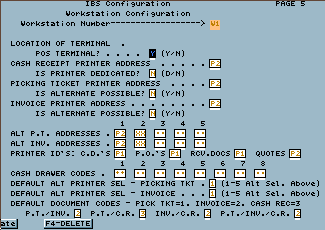
    MU 2 (Page 5)
    You must complete this for workstation printers to work
  2. Required Printer setup
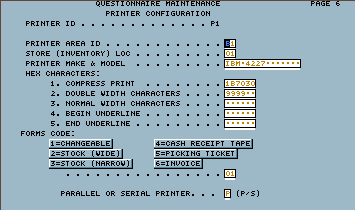
    MU 6 (or ZU 4 or 6)
    You must complete this for printers to properly work
  3. Optional user based printer assignments
    MU 17, 19 or WRKUSRPRF *ALL
    Only complete this when the user wants his/her reports to be directed elsewhere
  4. Optional workstation based printer assignments
    ESC 19 or 'WRKCFGSTS *DEV'
    Only complete this when the user wants all workstation print output to go to a specific printer

Descriptions

Assigning a standard print queue

This assigns the following printers: Standard invoice, cash receipt prints, quotes, PO's, receiving documents, and reports.

  • MU 2
  • Go to Page 5


[back to top]

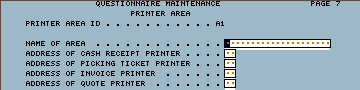
Assigning the Printer Area

This assigns where each user sends data within their zone

  • Go to MU 6 Printer setup (sometimes ZU 6) and complete Page 6
  • Next enter in your printer area

    area examples:

    • FC - front counter
    • SC - Sales counter
    • BO - Back office
    • B1 - Building 1
    • etc.
  • This is a typical setup

    some general examples:

    • Name of area 'Back Office'
    • Cash receipt printer 'P3'
    • Delivery ticket printer 'P2'
    • Invoice printer 'P2'
    • Quote printer 'P1'
  • Once completed exit and sign off the workstation then back on

[back to top]

Optional Assigning a User a specific Print Queue

This is used only when a specific user wants their reports to go to another print queue

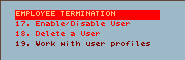
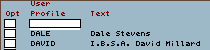
  • go to menu MU 17 (User management)
  • take option 19 (Work with user profiles)
    • your displayed option may be different
    • you can also type 'WRKUSRPRF' from a command line then press ENTER.
  • find the user then type a '2' (Change)
  • Press F10 for Additional Parameters
  • page down until you find print device
  • Change the device to the desired print queue then press ENTER.
  • The user must sign off then on for these changes to take effect.

Optional Assigning a Workstation to a specific Print Queue

  • Press ESC (or Attn) for the Escape/Attention key menu
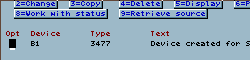
  • take the option to work with configuration status (usually) option 16 or 19.
    • Alternately you may type in 'WRKCFGSTS *DEV' on the command line.
  • type a 8 (Work with description) then press ENTER
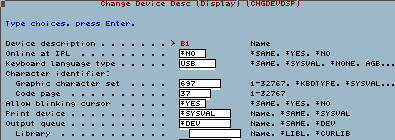
  • type a 2 (Change) then press ENTER
  • key in the new print device for this workstation then press ENTER.
  • sign off then on the workstation to finish

[back to top]

IBS Lumber and Building Material Software Copyright © 2006 IBS Lumber Software Inc (TM)
Last modified: November 7, 2011

IBS Sales & Support 888-640-1252
Main Office 888-640-1252
Fax IBS 877-712-8937

All pages contained in this support website are not intended for general public distribution. Any material here can be considered private, confidential with various copyrights and restrictions against public release. You 'the browser' cannot legally release this information for general public distribution.

remote support: http://www.gotomeeting.com | remote support download program