IBM Server Site

IBS Home Up

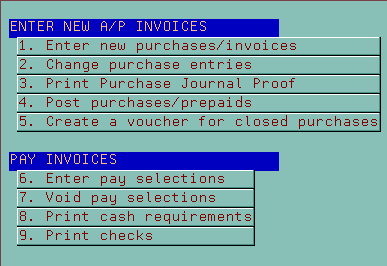
Process Path to paying an invoice

Steps taken to pay an invoice | Following the invoice | Problems

Steps taken to pay an invoice

  1. An invoice arrives for payment
  2. AU 1 - Enter an invoice from a vendor
    • each invoice is considered a voucher
    • each voucher is stored inside a new or existing batch
  3. AU 3 - Print a journal proof
  4. AU 4 - Post vouchers by batch for payment selection
  5. AU 6 - Enter pay selections
    • pay by invoice
    • pay by vendor
    • pay by due date or
    • pay by discount date
  6. AU 8 - Print cash requirements
  7. AU 9 - Print checks

    All check payments are now posted in the G/L

[back to top]


Step by step following the invoice

  1. An invoice arrives for payment
    At this point the invoice does not exist in the system; not until you enter it.
  2. AU 1 - Enter an invoice from a vendor
    • each invoice is considered a voucher
    • each voucher is stored inside a new or existing batch

    At this point the invoice is recorded in the system but not proofed or posted.

  3. AU 3 - Print a journal proof
    At this point the invoice is recorded in the system but not yet posted for payment.
  4. AU 4 - Post vouchers by batch for payment selection
    At this point the invoice is posted and ready for payment.
  5. AU 6 - Enter pay selections
    • pay by invoice
    • pay by vendor
    • pay by due date or
    • pay by discount date

    At this point the invoice is selected for payment but not yet paid.

  6. AU 8 - Print cash requirements
    At this point the invoice is selected for payment but not yet paid. No checks can be run until cash requirements report is completed
  7. AU 9 - Print checks
    At this point the invoice is paid.

[back to top]


Problems

  • Q. I can't enter my invoice it keeps saying no duplicate invoice numbers?

    A. Check and see if you have already entered the invoice.

  • Q. I see my invoices on the journal proof but I can't select them for payment.

    A. Check the due date. See if it was entered in a future year.

  • Q. I can't find my invoices to select for payment.

    A. Reprint your journal proof and make sure that they are posted and not out of balance.

  • Q. My voucher is out of balance how do I fix it?

    A. The easiest way to fix an out of balance voucher is to delete it and recreate it.
    Otherwise go to AU 2 and find the voucher then update it with the correct information.

IBS Lumber and Building Material Software Copyright © 2006 IBS Lumber Software Inc (TM)
Last modified: November 7, 2011

IBS Sales & Support 888-640-1252
Main Office 888-640-1252
Fax IBS 877-712-8937

All pages contained in this support website are not intended for general public distribution. Any material here can be considered private, confidential with various copyrights and restrictions against public release. You 'the browser' cannot legally release this information for general public distribution.

remote support: http://www.gotomeeting.com | remote support download program