|

 
| |
Creating a Quick Query
Quick Tips
- Press
F5
(RUN) at anytime to see what the
query looks like.
- CAPS and lowercase letters are irrelevant here. Use either case,
it doesn't matter.
Standard Files often Queried
- armst
- Accounts Receivable Master
- artr
- Accounting Transaction File
- This file holds all post pending and invalid G/L transaction
information
- dwnpmt
- Down payment, advance payment and layaway file
- gld
- General Ledger information
- ivmst
- opitm
- Open Item File
- This file contains all information currently posted on accounts
- ordhdr
- Order Header File
- This file contains all order finalized information
- orditm
- Order Item File
- This file has all line item order information
- pyd
- pyh
The Query
Creating A Query
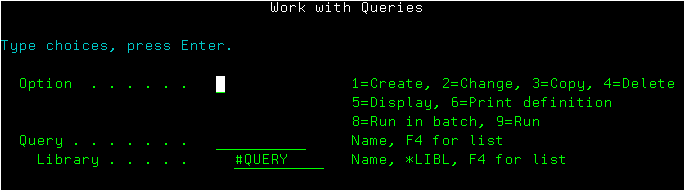
- Type 'wrkqry' then press ENTER.
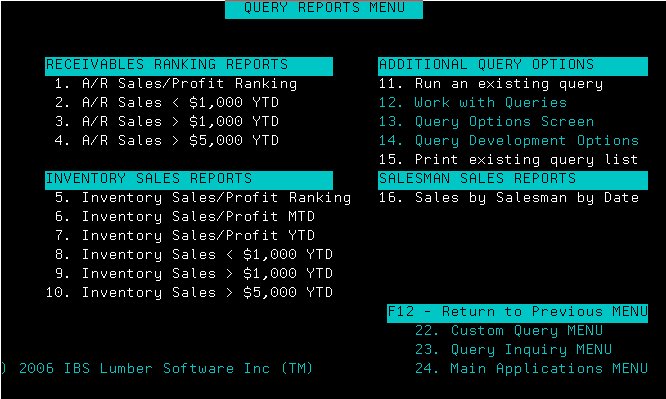
- You can also get to the same place through RR, RI, MR & MI #20
(Query Menu) then select option #12.

- when the work with queries menu prompts key
in the required information
View before typing in information
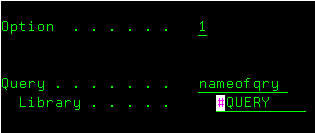
View after typing in information
- Key in the following information then press ENTER.
Option - 1 = create, 2 = change an existing query, 9 = run an
existing query
Query - type in the name of the query you want to create
Library - usually either #query (most common) or
ibsqry
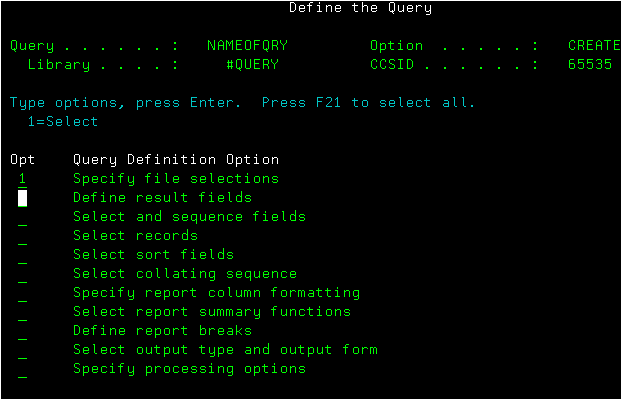
Setting the parameters
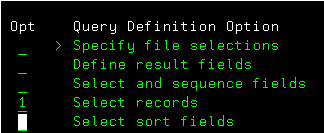
- Type a '1' (Select) beside each option you need to change.
- Specify file selections
- File - type in the name of the file (this example shows the
order header file)
- Library - usually IBS400F (this might be different if you are
multi-company)
- Member - leave this field alone
- Format - leave this field alone
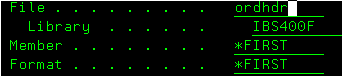
- press ENTER several times until your back on the
'Define the Query' screen
- Select records
- type in the desired information there are several examples below
EQ (Equals)
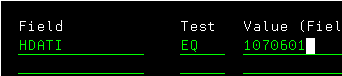
- HDATI = Date invoiced
- Test = EQ (Equals)
- this example requests all invoices from 1070601 (1=century, 07 =
year, 06 = month, 01 = day)
GE (Greater than or equal to)
- using the greater than or equal (GE) changes the query to list
all invoices from 06/01/2007 forwards
LT (Less than)
- using the less than (LT) changes the query to list all invoices
before 06/01/2007
LE (Less than or equal)
- using the less than or equal (LE) changes the query to list all
invoices on or before 06/01/2007
LIST (List of values)
- using the list (LIST) changes the query to list all invoices
from for the dates given (See image below)
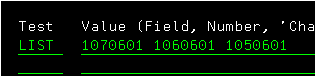
Notice how this is a listing of invoices for 06/01/2007, 06/01/2006
& 06/01/2005
RANGE (Range of values,
from-to)
- using the range (RANGE) value changes the query to list all
invoices within the given range (i.e. from the 1st value to the 2nd
value). See example below.

- This example shows a date range of invoices from 06/01/2007 to
06/30/2007.
*QUICK HINT*
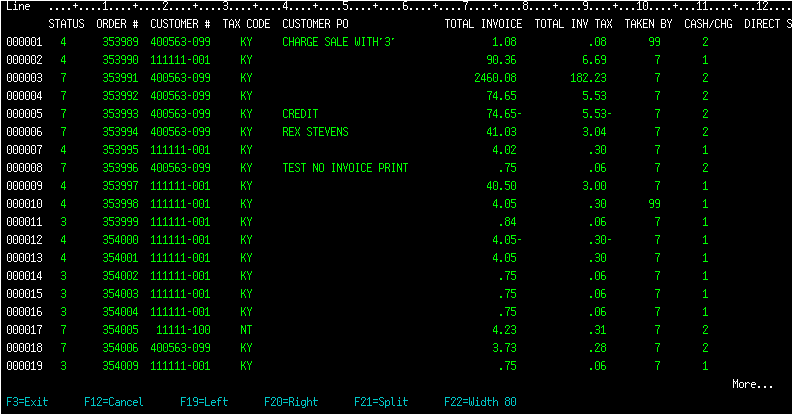
Press F5 to see what you have in your query so far

|