|

 
| |
IBS Transfer Accounts
Additional Resources
- GL Setup Overview
- Category Setups (GU
21, 1 also IU 9)
- System Configuration (GU
21, 2 also MU 2)
- Tax code setup (GU
21, 3 also RU 8)
- Transfer Account Setup (GU
21, 4 also MU 10)
- Chart of Accounts (GU 21,
5 also GU 15, 1)
- Financial Format Member (GU 21,
6 also GU 15, 3)
- Vendor Setup (GU
21, 7 also OU 5 and AU 11)
- Vendor GL Assignments (GU 21, 8)
- Department Master (GU 21, 12 also PU 12)
- Unemployment Insurance (GU 21, 13 also PU 13)
- State Disability Insurance (GU 21, 14 also PU 14)
- Payroll Tax Accounts (GU 21, 15 also PU 15)
- Payroll Tax Tables (GU 21, 16 also PU 16)
- Additional Earned Income (GU 21, 17 also PU 17)
- Federal State ID Numbers (GU
21, 19 also PU 19)
- Payroll Control
File (GU 21, 20 also PU 20)
See Also
Process Defined
- A sale (SU, #1) is made to a transfer account
- the activity is recorded in your G/L as a transfer NOT A SALE
- inventory is relieved (at the customer price level)
Finding the Account
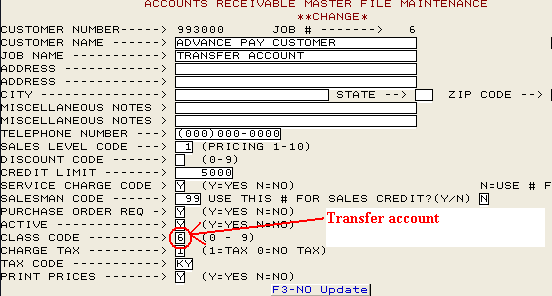
Step #1 - Setting up the Account in Receivables Update
- RU (Receivables Update)
- Option 3 (Account Manager)
- Set customer sales level (price level) code (10 = at cost)
- Change class code to a '6' (Transfer Account)
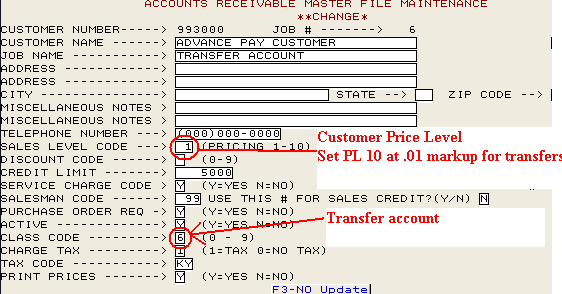
Step #2 - Setting up the Account in Management Update
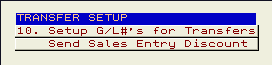
- Go to MU (Management Update)
- Select option 10 (Setup G/L'#...)
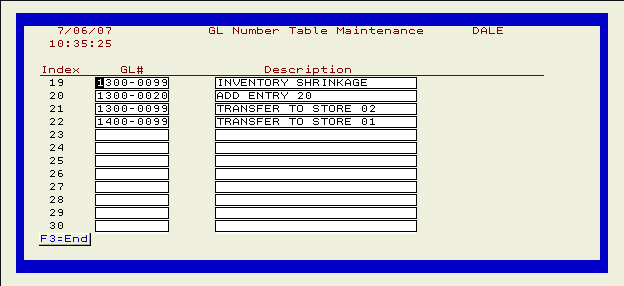
- Enter the G/L Information as follows
20 = Master Account
21 = Location 1
22 = Location 2
23 = Location 3
24 = Location 4
25 = Location 5
26 = Location 6, etc.
Errors Must be Corrected
- Most common error is the location setup in the customer master file.
- To transfer from location 01 you should have account [999999]-001 setup.
- To transfer from location 02 you should have account [999999]-002 setup.
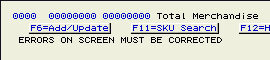
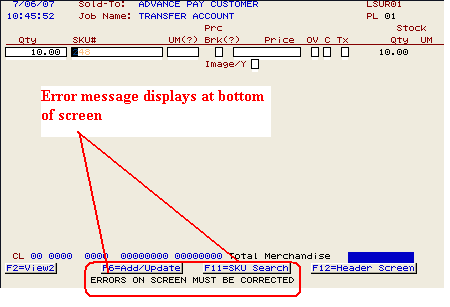
- If you get the following error during a sales order; "errors on screen
must be corrected," then you have not properly setup your G/L account.
Call IBS for more assistance.
|